

Volunteer rosters, runsheets and checklists, shared with one friendly link
Your volunteers are giving you their time, so everything here is built to respect it. On a roster they pick available shifts and see only their own. On a runsheet, change one time and everything after it moves with it. Tasks give them a checklist to tick off from their own link, and nobody ever needs an account.
Building and sharing are free, with no limit. The paid plan is A$12.95 a month and adds up to 250 volunteers on a roster (15 free) and 40 on a runsheet (3 free), branding and the other features marked Paid plan. See pricing.
Rosters
Shifts your volunteers sign up for, swap and check in to.
Build a week of shifts
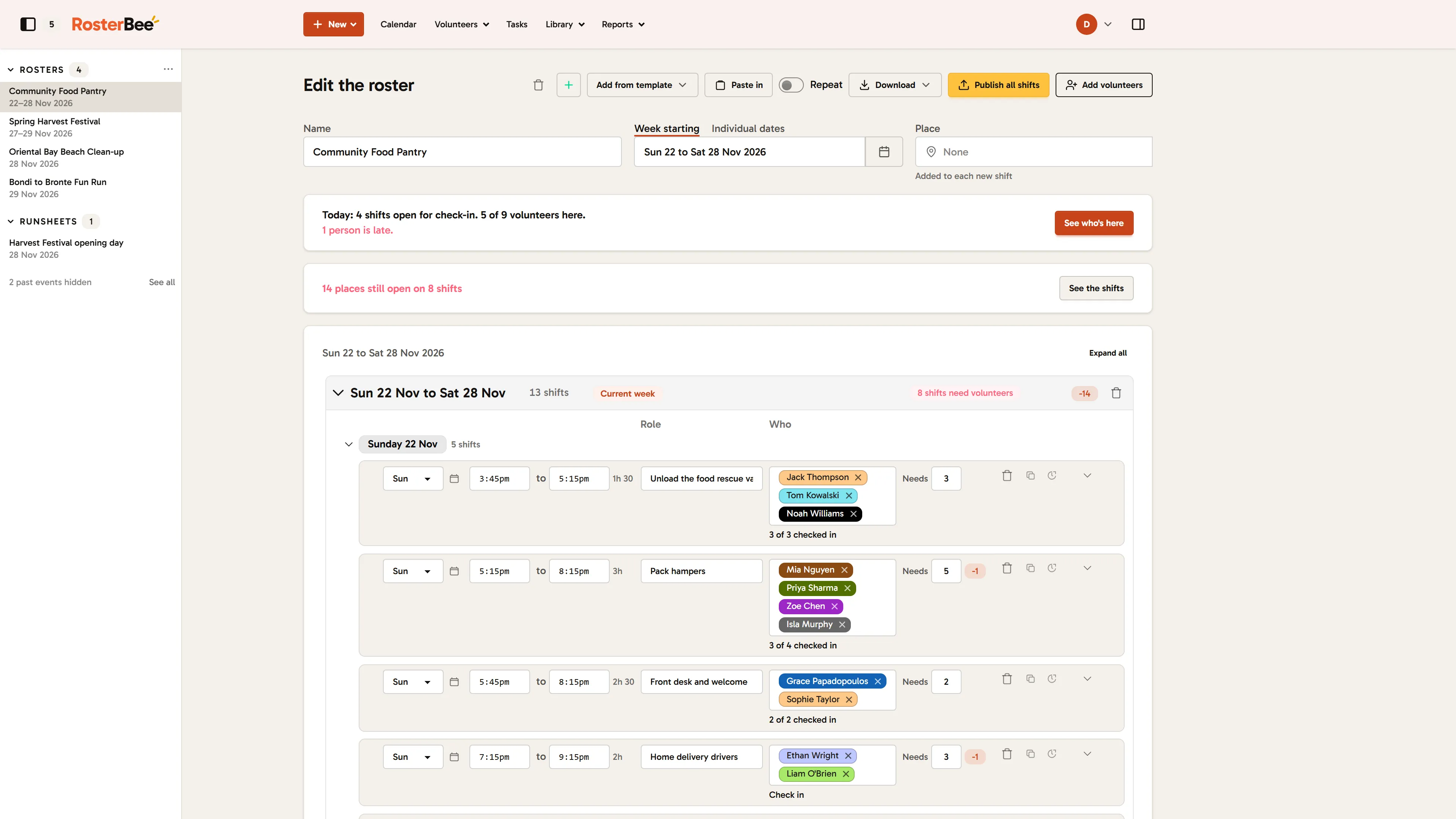
A roster is a week of shifts, listed above your runsheets. Each shift keeps its own start and end, and shifts can overlap.
 Show it full size.
- Type an end time beside the start, such as 5pm, and the length is worked out. 10pm to 6am is 8 hours.
- Copy a shift to other days. Tick Monday to Friday and the same shift, with the same volunteers, is on each day.
- Every day of the week is listed, so a day with nobody on it yet is easy to see.
- Draft, then publish. New shifts are drafts your volunteers cannot see. Publish all shifts shows them to volunteers and can email each volunteer their shifts.
- Repeat every week. Build one week and the weeks ahead are added for you. Change a single day without changing the pattern.
- Free for up to 15 volunteers, with every shift feature. The paid plan names up to 250 on a roster and 50 on one shift.
Let volunteers choose the shifts that fit their lives
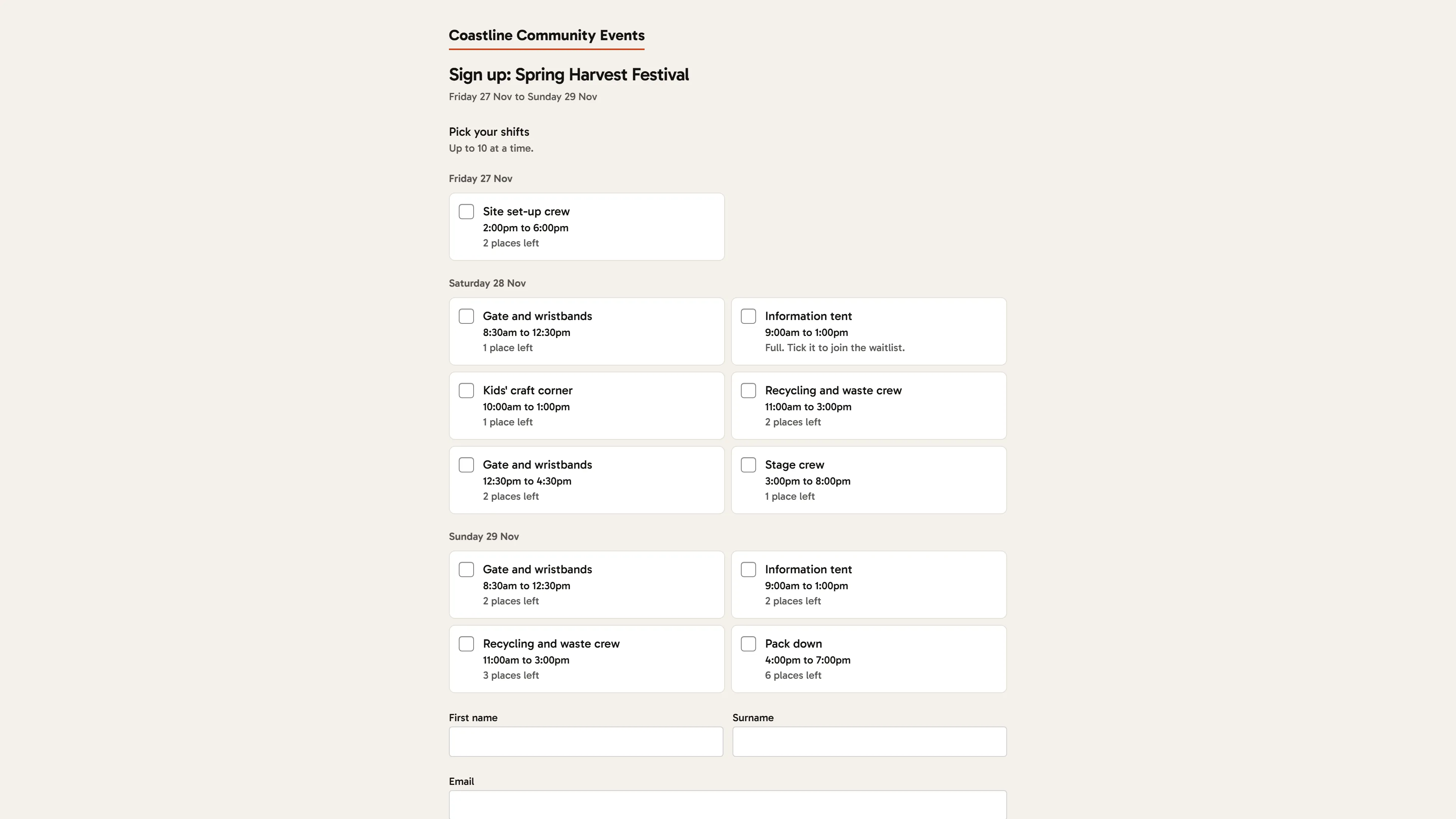
Share one link, or put the sign-up form on your own website, and new volunteers sign themselves up for the shifts they want. Set how many volunteers each shift needs, and a full shift takes a waitlist.
 Show it full size.
- A sign-up link. Put it in a newsletter, an email or on a poster, with a QR code for printing. New volunteers pick available shifts, give their name and email, and confirm from the email we send.
- The sign-up form on your website. Copy a few lines of code into Squarespace, Wix, WordPress or any website, and volunteers sign up without leaving it. Write your own heading, opening text and button, and set it for a light or dark page.
- Questions and a waiver on sign-up. Ask short-answer or yes-or-no questions, and have volunteers agree to a waiver or code of conduct. Only you see the answers.
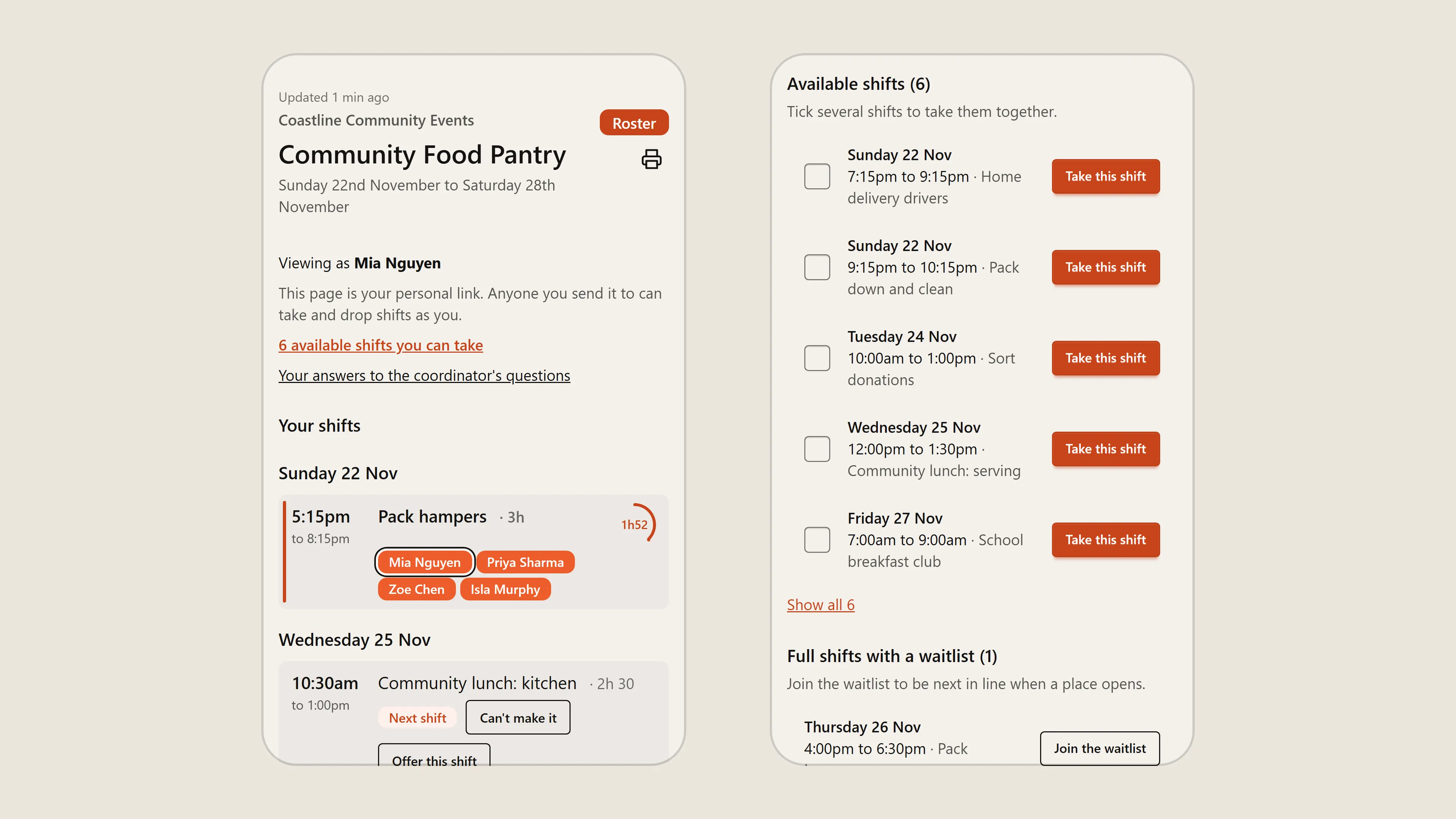
- Available shifts. Set how many volunteers a shift needs, and they take the free places from their personal link. Nobody can take a shift that overlaps one they are already on.
- Waitlists, free. Volunteers join the waitlist on a full shift, and when a place opens the first in line is put on it and emailed. Within 24 hours of the start, everyone waiting is told and the first to take it gets it.
Each volunteer sees only their own shifts
Every volunteer gets their own link to the roster. From it they see their shifts, take free places and hand on shifts they cannot do, with no account and no password.
 Show it full size.
- Personal links. Each volunteer gets their own link and sees the roster as themselves, with no account.
- Offer a shift you cannot do, and somebody else takes it. Turn on Require approval to choose who works each one.
- When you're not available. Volunteers mark the days they are not available, and you are warned before you put them on.
- Subscribe to my shifts keeps their phone's calendar up to date.
Reminders, thank-yous and open shifts, emailed for you
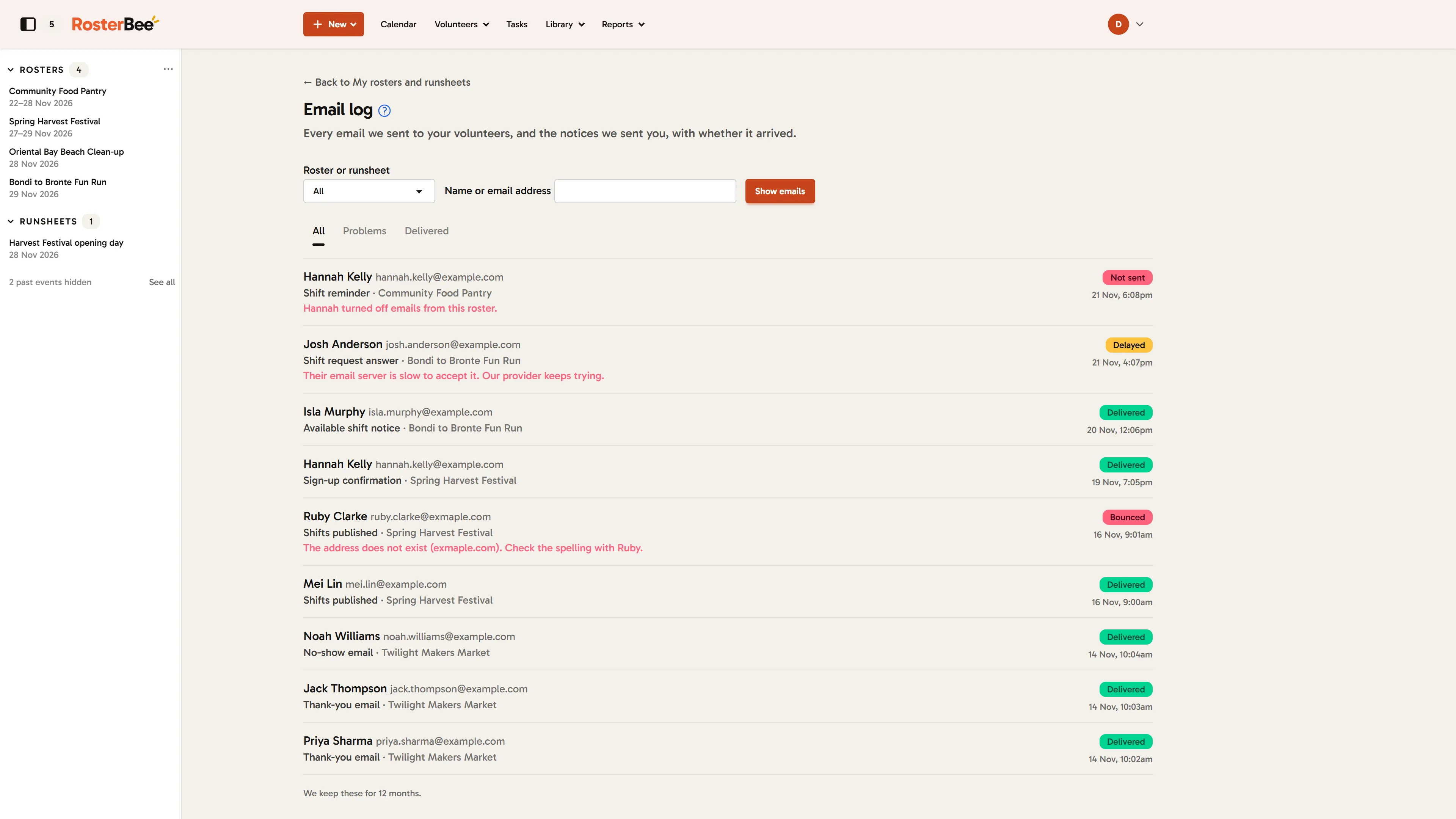
Each roster emails its volunteers at the right moments on its own: before a shift, when a place opens and after they have helped. You choose the timing on each roster.
 Show it full size.
- Shift reminders from 2 weeks to 2 hours before each shift, with a second reminder if you want one.
- A weekly email with each volunteer's shifts for the week ahead.
- Available shift notices to volunteers who could take a shift in the next 14 days that still has a place free.
- A thank-you email after their last shift of the day. Never to anyone you marked a no-show.
- Answer reminders to volunteers who haven't answered a required sign-up question or agreed to the waiver.
- A no-show email 15 minutes after you mark someone a no-show, so you can undo a mistake first.
- Phone notifications. With notifications on, their phone reminds them 12 hours before the shift too.
- Your own wording for each automatic email, on the paid plan.
- Email your volunteers a message on the paid plan: everyone on the roster, or the people on one shift. Bold and lists for what matters, and your snippets to drop in.
- Email log lists every email sent to your volunteers, and whether it arrived.
Check volunteers in from their phone, a tablet or a QR poster
Volunteers check themselves in when they arrive, or you tick them in. Their attended hours are counted from the check-in.
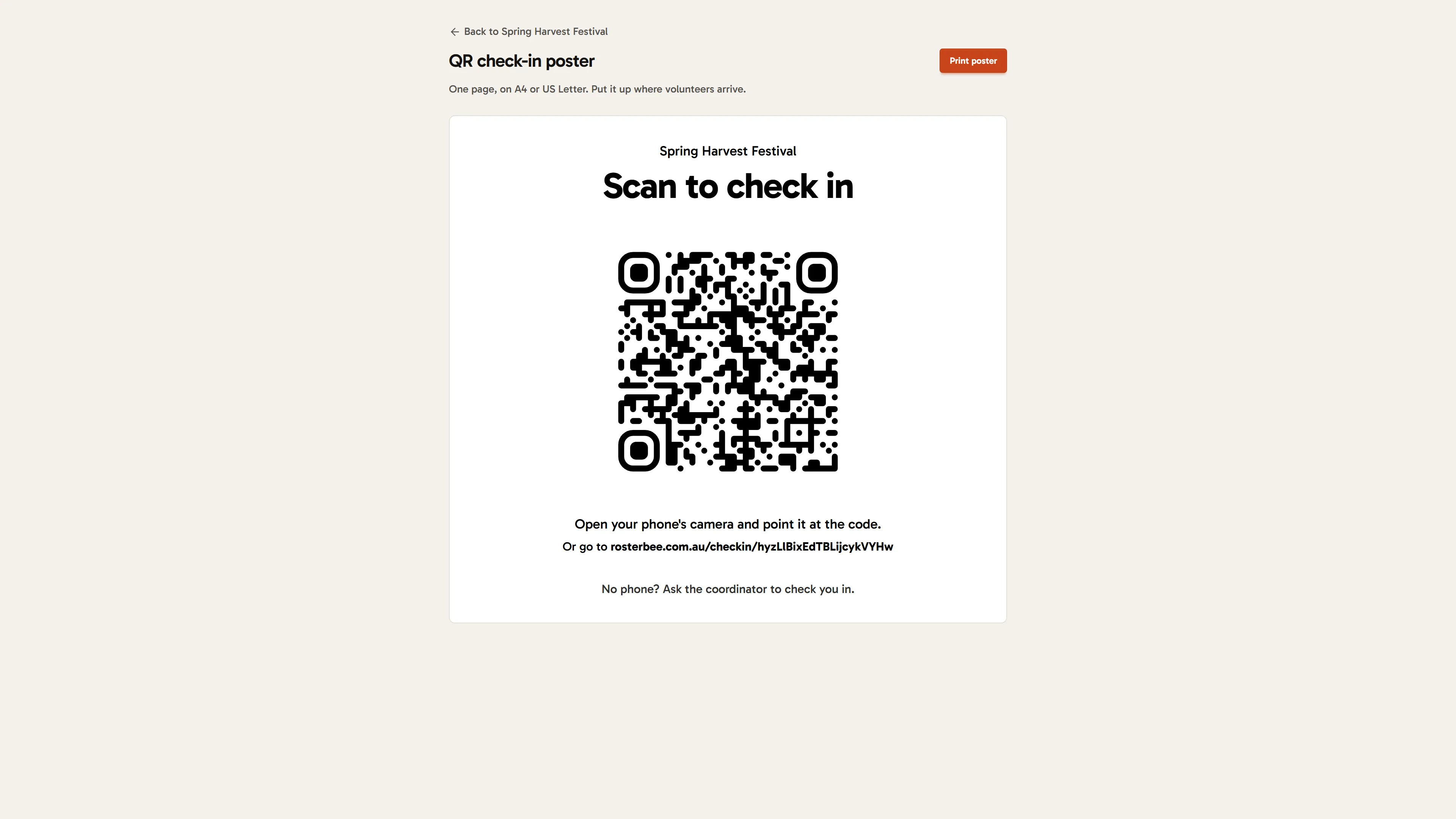 Show it full size.
- From their personal link. Volunteers press I'm here, and Sign out if they leave early. Free.
- Tick them in yourself on the roster, and correct the times they arrived and left. Free.
- Door check-in on a tablet or laptop at the door. A volunteer types the start of their name and presses I'm here, with no link or email needed. It opens as a kiosk and keeps the screen on. Paid plan.
- QR check-in. Print a poster with a QR code. Volunteers scan it with their own phone to check in and sign out. Choose whether we email them a code first. Paid plan.
- Walk-ins sign up for a shift at the door or on the QR page, if you allow them.
- Mark a no-show for anybody who didn't come.
- Download hours (CSV) on each roster, with planned and attended hours and no-shows. Hours across all your rosters are in Reports.
See who is late, who is here and who has left
While shifts are open for check-in, the roster says how many volunteers are checked in and how many are late. Open the on-the-day page to see every name.
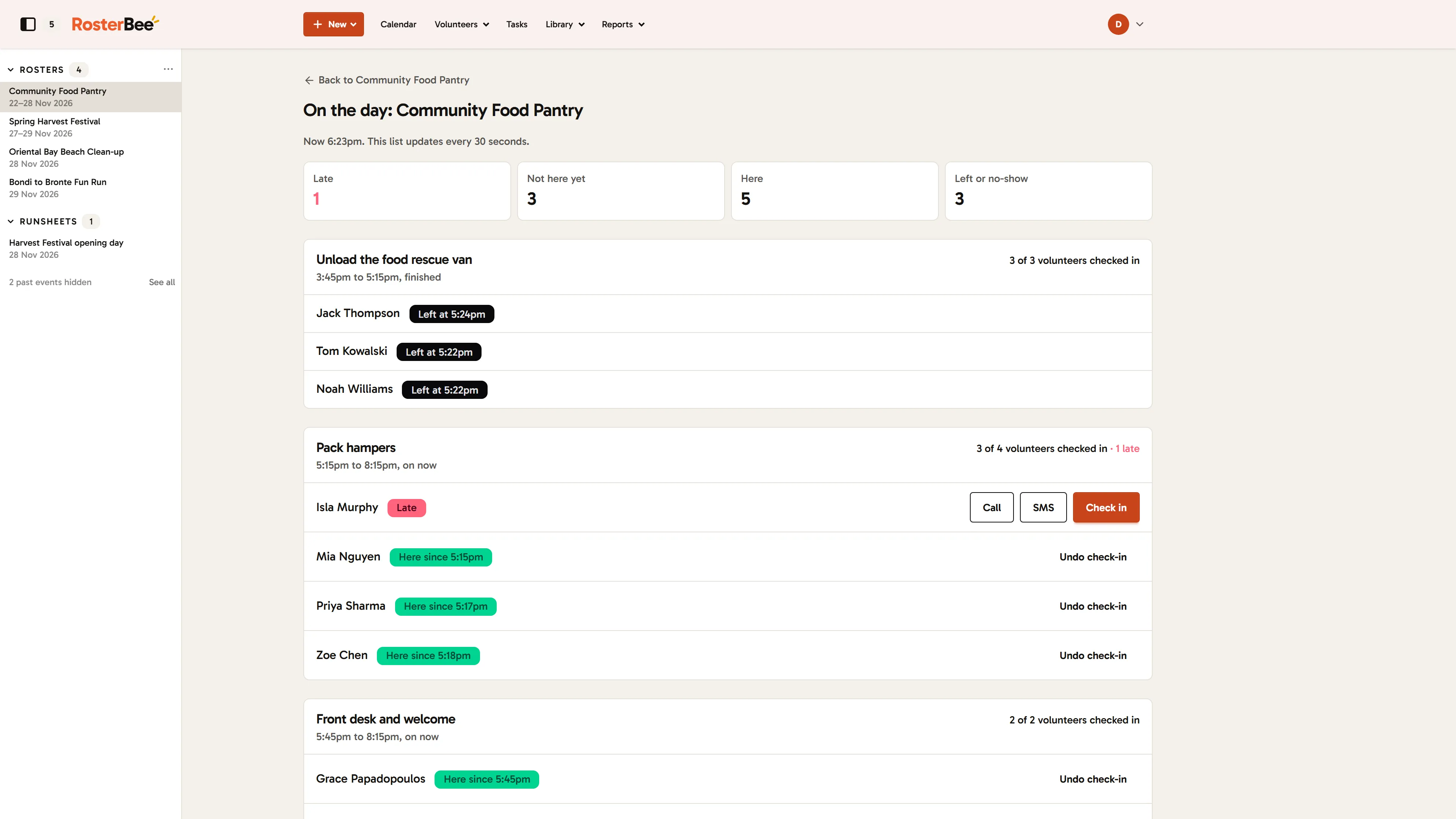 Show it full size.
- Today's shifts, with each name marked Late, Not here yet, Here since, Left at or No-show. Late names come first.
- Call and SMS buttons for a late volunteer with a mobile number.
- Check in a volunteer for them, from the same page.
- It updates itself every 30 seconds, so volunteers who press I'm here move to Here without a reload.
Volunteers
One record for each volunteer, across all your rosters.
One record for each volunteer, across every roster
Everyone on your rosters is on the Volunteers page, with their details and the rosters they're on. The same name and email address on two rosters is one volunteer.
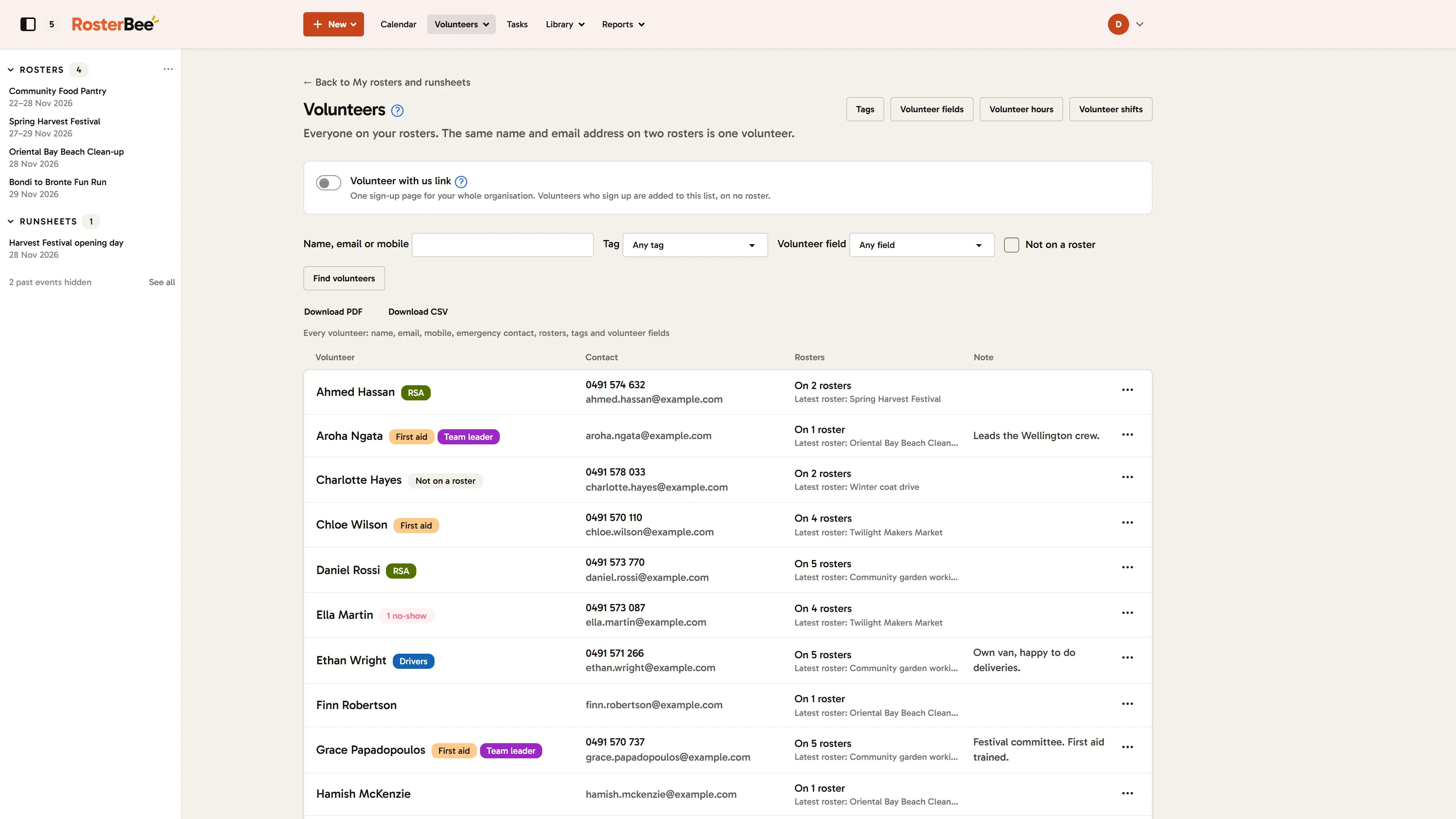 Show it full size.
- Contact details: name, email, mobile and an emergency contact with their phone and relationship.
- Volunteers keep their own details up to date on their personal link. Only you and the volunteer see them.
- Their rosters and shifts, with planned and attended hours on each roster. Totals across rosters are on the paid plan.
- Search by name, email or mobile number.
- Mark as inactive and they can't be put on new shifts. The shifts they already have stay.
- Signed on paper. Record a volunteer who signed a paper form or the sign-in sheet.
- Download the list as a CSV or PDF, with emergency contacts, rosters and tags.
- Free on every plan.
One sign-up link for your whole organisation
Share one link or poster for people who want to volunteer with you, whatever the roster. They join your volunteers, and you put them on the rosters that need them.
- A link and a poster with a QR code, for a newsletter, your website or a noticeboard.
- Ask your own questions, such as which areas they'd like to help with. Their mobile number is optional.
- Not on a roster shows who is waiting for one. Add to a roster puts them on with a personal link, and nobody is emailed.
- We email you once a day at most, listing who signed up.
- Their own link to change their details and answers, see their rosters or stop volunteering.
- Free on every plan.
Label volunteers by skill or team
Tag volunteers with First aid, Kitchen, RSA or anything else, then find everyone with a tag in one click.
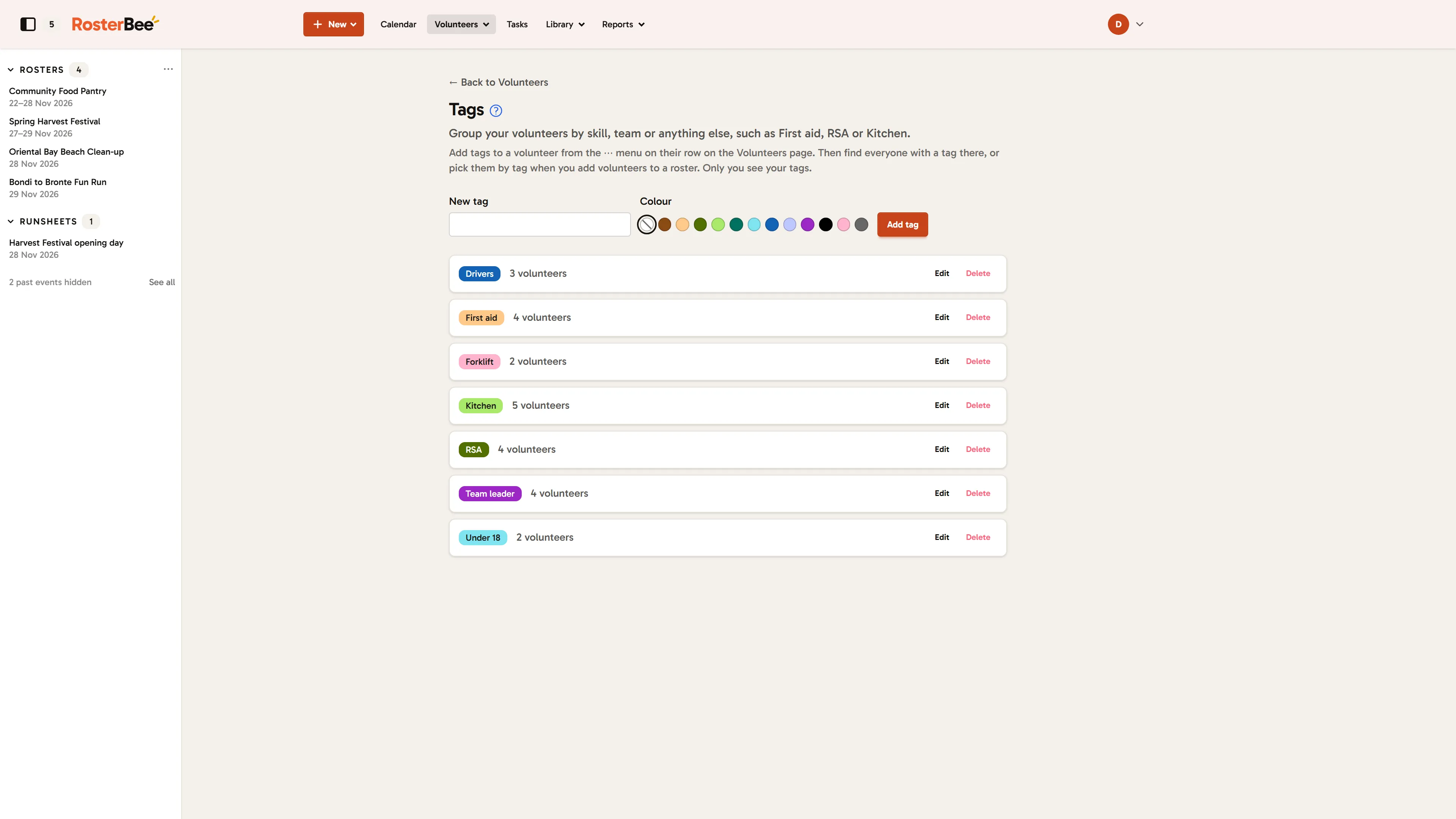 Show it full size.
- Tag a volunteer from their card. A name you haven't used before makes a new tag.
- Find everyone with a tag on the Volunteers page, or press a tag on any card.
- Pick by tag when you add volunteers to a roster.
- Give a tag a colour, rename it or delete it, and every volunteer who has it changes too.
- Tags are in the volunteer list download. Only you see them.
- Free on every plan.
A private note on each volunteer
Keep a note on a volunteer, such as a first aid certificate or a preference for mornings. Only you see it.
- The note is on the volunteer's card on the Volunteers page.
- It stays when the volunteer is no longer on any of your rosters, so it's there next season.
- It stays with them when their name or email address changes.
Know whose working with children check has expired
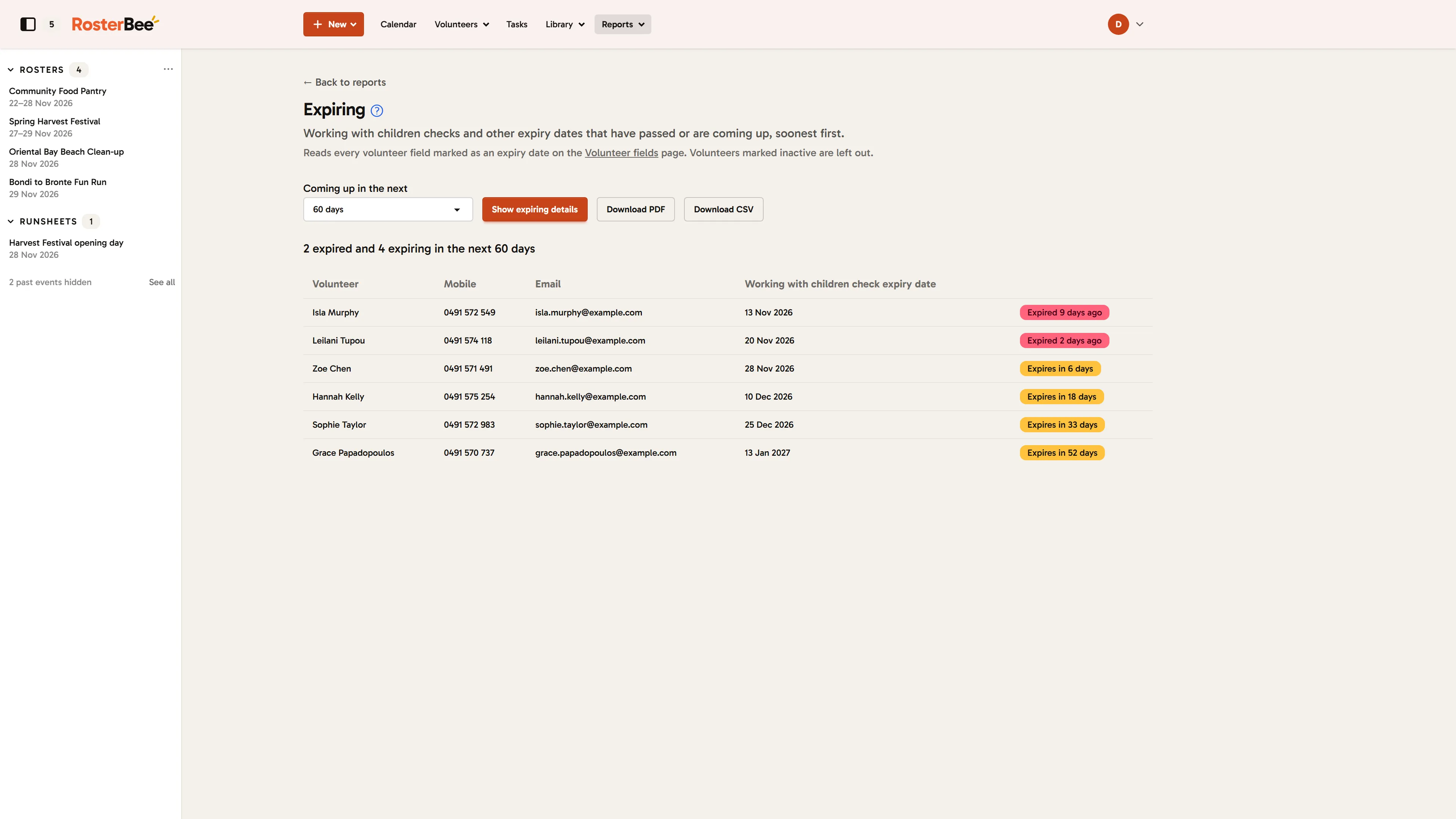
Keep each volunteer's check, card number and expiry date, and see who has expired or is about to.
 Show it full size.
- Add the three fields in one press. Each state's check is under its own name, such as Blue Card or Ochre Card.
- A volunteer's card says Expired, or Expires in 12 days.
- We email you 30 days before a date, listing everyone whose date it is.
- The roster's Volunteers tab marks anyone whose check has expired before you put them on a shift.
- The Expiring report lists every date that has passed or is coming up, as a PDF or CSV.
- Works for any expiry date, such as first aid certificates and RSAs.
Volunteers see and download their own hours
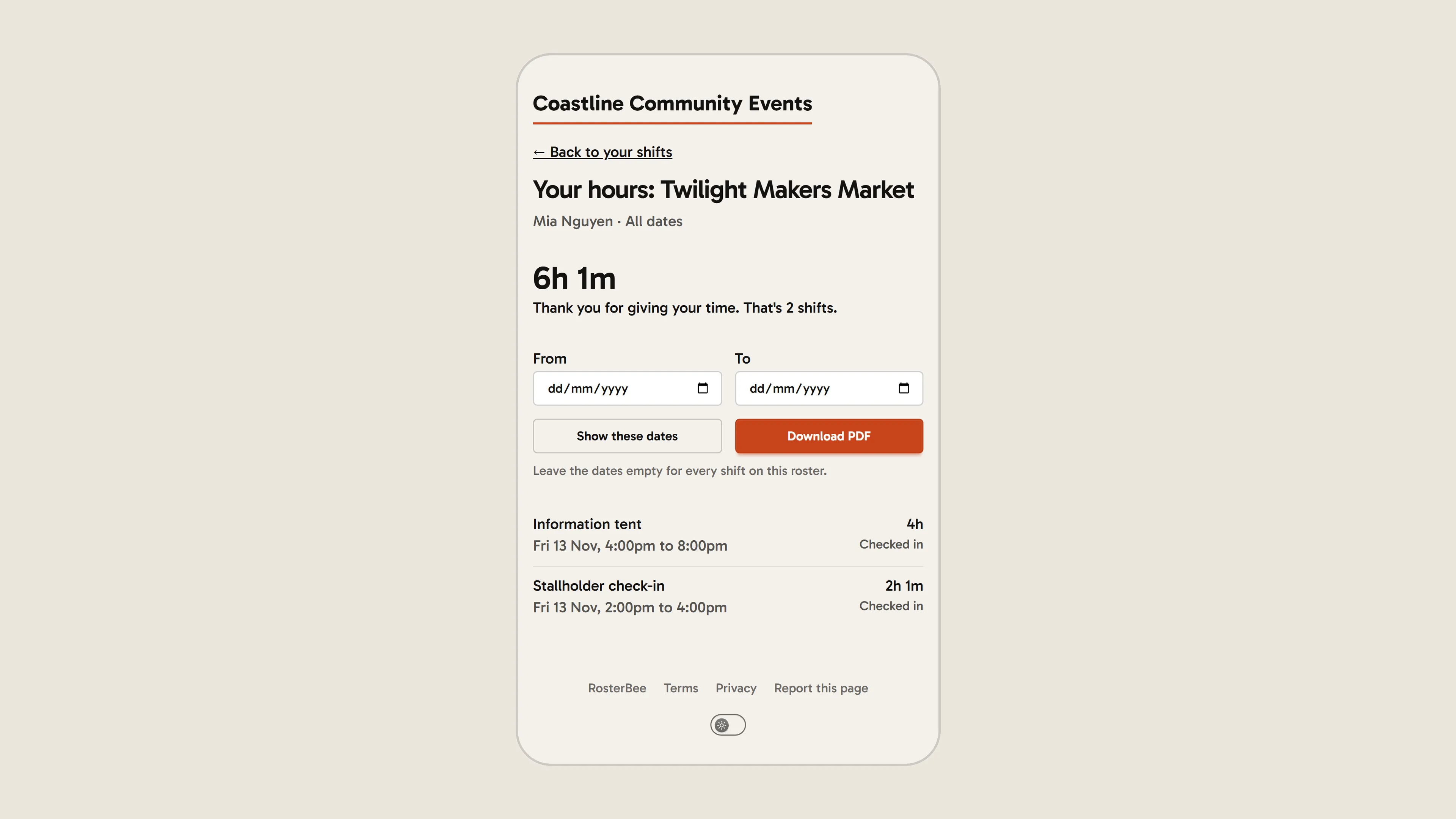
On their personal link, each volunteer sees the hours they have given and every shift that counts. Free for every volunteer, whatever your plan.
 Show it full size.
- Attended hours where they were checked in, and planned hours on a day attendance wasn't taken.
- Shifts they weren't checked in to, and no-shows, are listed separately and left out of the total.
- Download PDF for the dates they choose, as a record for a school, an employer or a court.
Reports
Hours, attendance and contact lists across all your rosters, as CSV or PDF.
Every report, and which are free
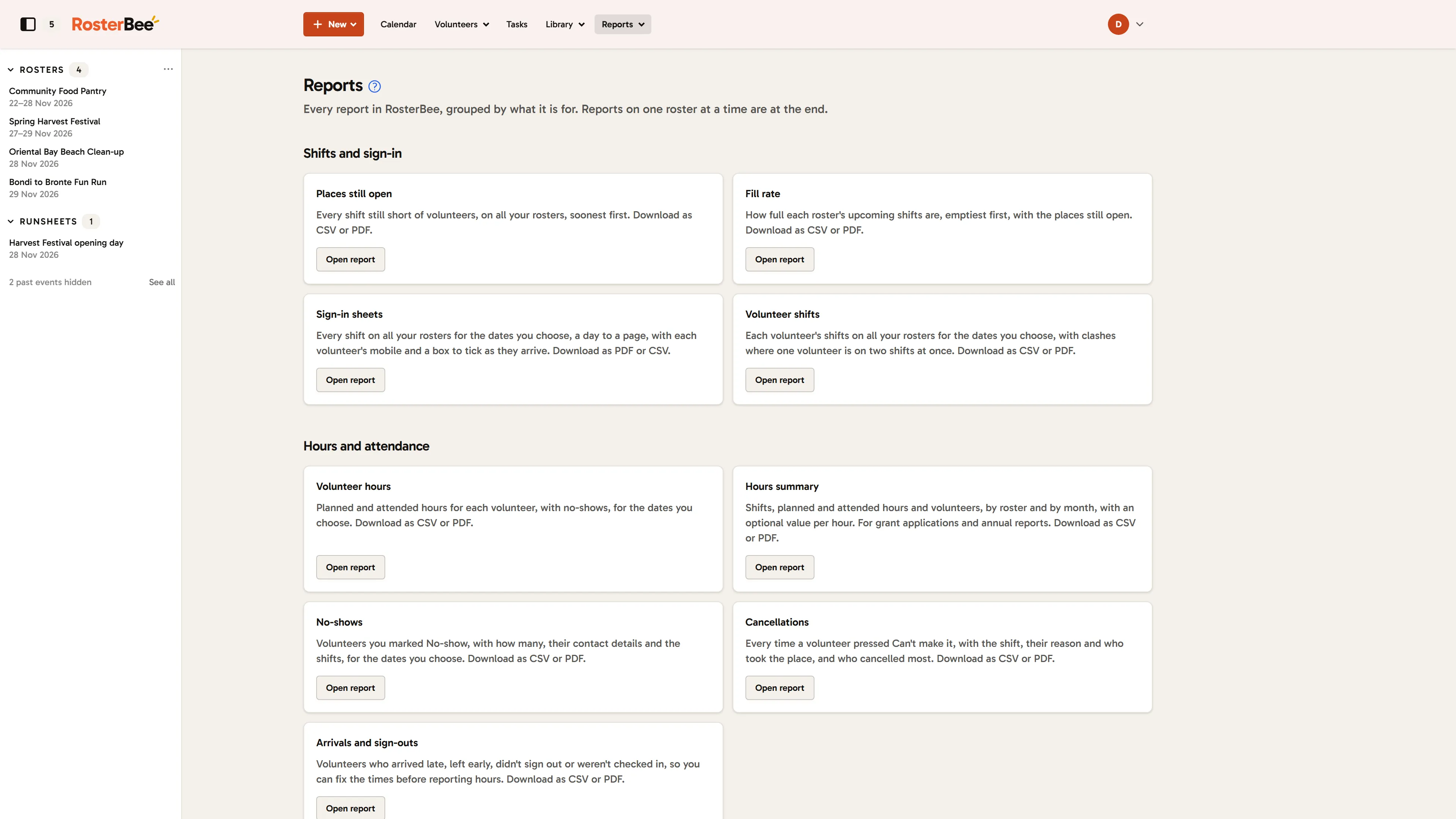
The Reports page lists every report and links to it. These are the reports across all your rosters. Each roster also has its own sign-in sheet, open places and hours.
 Show it full size.
- Places still open. Every shift still short of volunteers, on all your rosters, soonest first. Download as CSV or PDF.
- Fill rate. How full each roster's upcoming shifts are, emptiest first, with the places still open. Download as CSV or PDF.
- Sign-in sheets. Every shift on all your rosters for the dates you choose, a day to a page, with each volunteer's mobile and a box to tick as they arrive. Download as PDF or CSV.
- Volunteer shifts (paid plan). Each volunteer's shifts on all your rosters for the dates you choose, with clashes where one volunteer is on two shifts at once. Download as CSV or PDF.
- Volunteer hours (paid plan). Planned and attended hours for each volunteer, with no-shows, for the dates you choose. Download as CSV or PDF.
- Hours summary (paid plan). Shifts, planned and attended hours and volunteers, by roster and by month, with an optional value per hour. For grant applications and annual reports. Download as CSV or PDF.
- No-shows (paid plan). Volunteers you marked No-show, with how many, their contact details and the shifts, for the dates you choose. Download as CSV or PDF.
- Cancellations (paid plan). Every time a volunteer pressed Can't make it, with the shift, their reason and who took the place, and who cancelled most. Download as CSV or PDF.
- Arrivals and sign-outs (paid plan). Volunteers who arrived late, left early, didn't sign out or weren't checked in, so you can fix the times before reporting hours. Download as CSV or PDF.
- Volunteer list. Name, email, mobile, emergency contact and rosters for every volunteer. Download as CSV or PDF.
- Sign-up answers. What volunteers answered to each roster's sign-up questions, whether they agreed to its waiver, and who still owes either. Download as CSV or PDF.
- Email log. Every email sent to your volunteers, and whether it arrived.
- Lapsed volunteers (paid plan). Volunteers who haven't had a shift in 3, 6 or 12 months, and those who have never had one, with their email and mobile, so you can get back in touch. Download as CSV or PDF.
- New volunteers (paid plan). Volunteers whose first shift was between the dates you choose, with their email, mobile and first roster. Download as CSV or PDF.
- Expiring (paid plan). Working with children checks and other expiry dates that have passed or fall in the next 30, 60 or 90 days, soonest first. Download as CSV or PDF.
- Rosters and runsheets. Every roster and runsheet in your account, with its dates and share link. It has no edit links, so you can pass it on. Download as CSV.
Hours for grant applications and annual reports
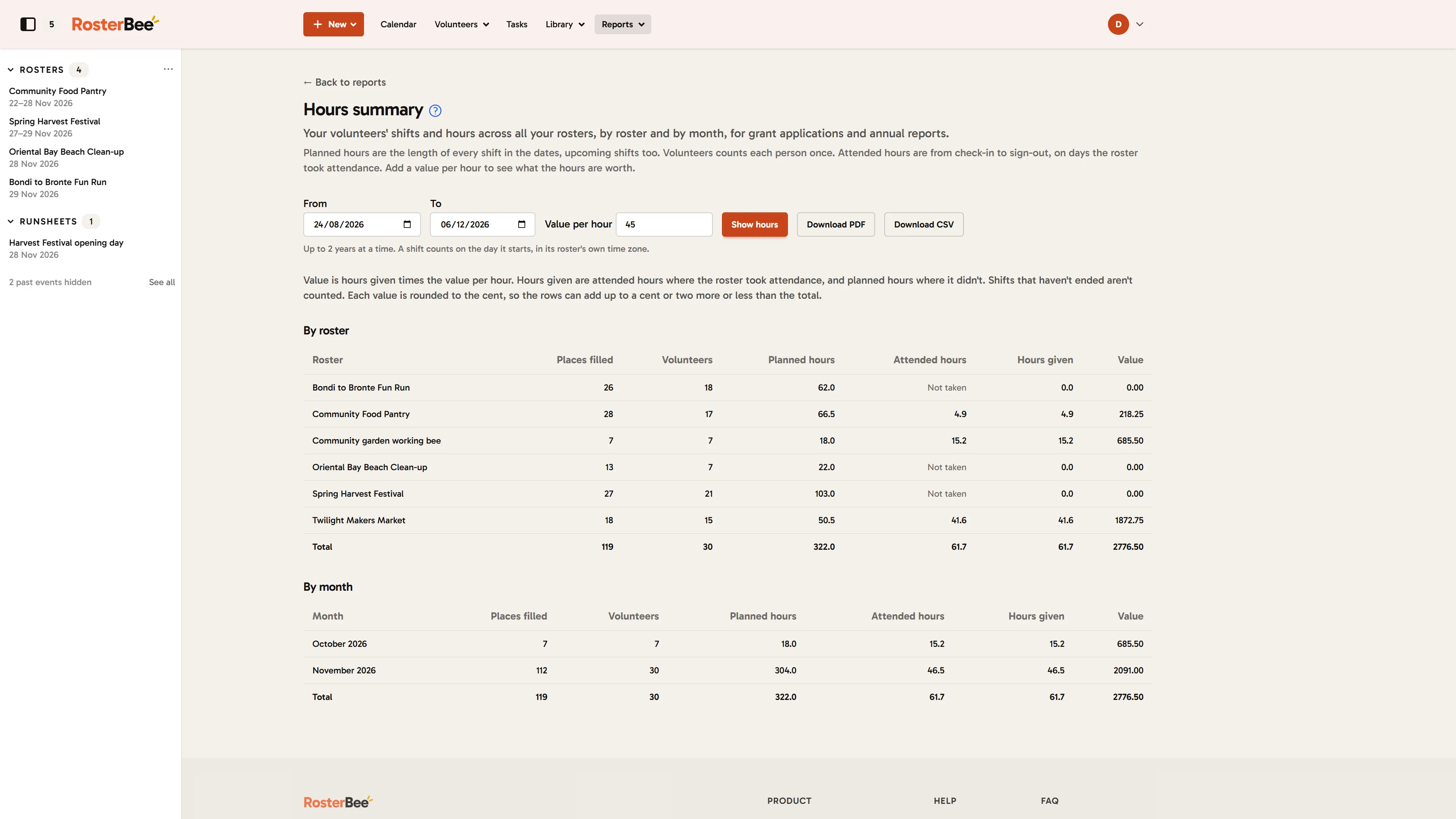
Shifts, planned and attended hours and volunteers, by roster and by month, for the dates you choose.
 Show it full size.
- Totals by roster and by month, with the number of volunteers.
- Value per hour. Add a value for each hour to show what your volunteers' time is worth.
- Volunteer hours gives planned and attended hours for each volunteer, with no-shows.
- Download either as a CSV or PDF.
Printed sign-in sheets for every roster
Every shift on the rosters you tick, for the dates you choose, a day to a page.
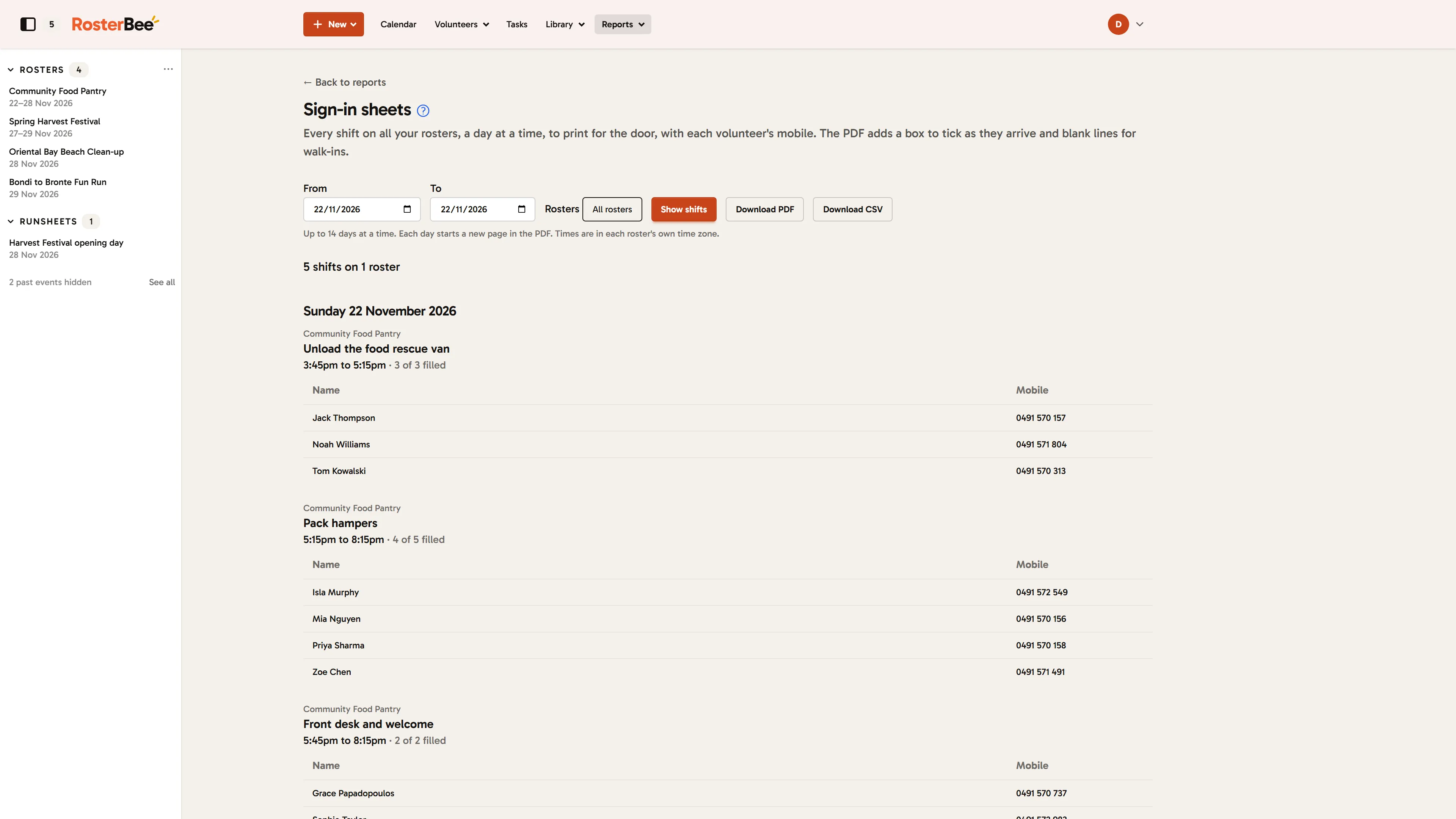 Show it full size.
- Each volunteer's name and mobile, with a box to tick as they arrive.
- Download as a PDF to print, or as a CSV.
- One roster's sheet is on that roster's Download menu.
- Fill rate shows how full each roster's upcoming shifts are, emptiest first.
- Free on every plan.
See who didn't come, cancelled, came late or left early
Fix the times before you report hours, and see who keeps missing shifts.
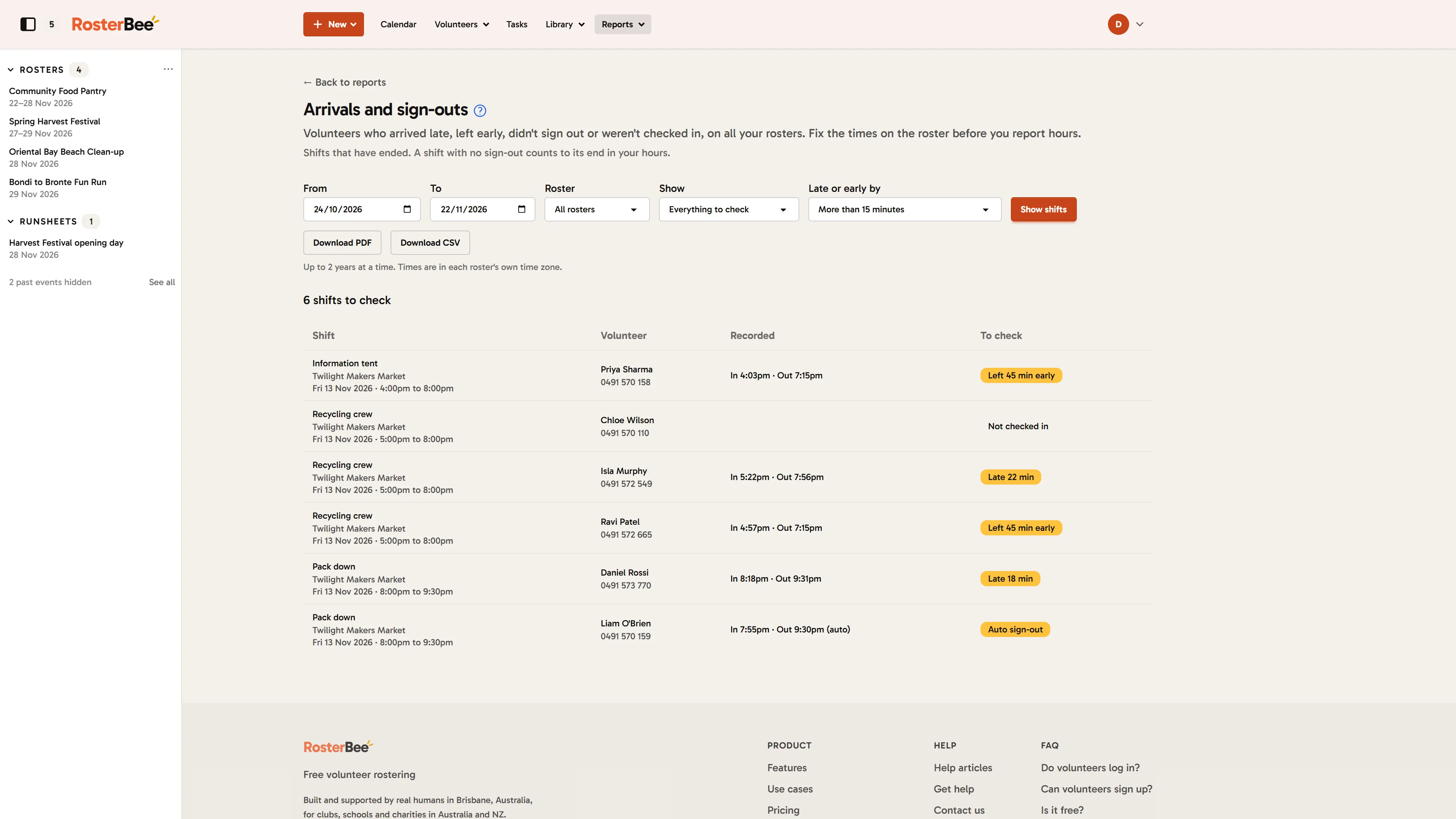 Show it full size.
- No-shows: volunteers you marked No-show, how many times, their contact details and the shifts.
- Arrivals and sign-outs: volunteers who arrived late, left early, didn't sign out or weren't checked in.
- Cancellations: every time a volunteer pressed Can't make it, with their reason and who took the place, and who cancelled most.
- Volunteer shifts: each volunteer's shifts across your rosters, with clashes where one volunteer is on two shifts at once.
- Download each as a CSV or PDF.
Find volunteers to welcome, and volunteers to win back
Lists with each volunteer's email and mobile, so you can get in touch.
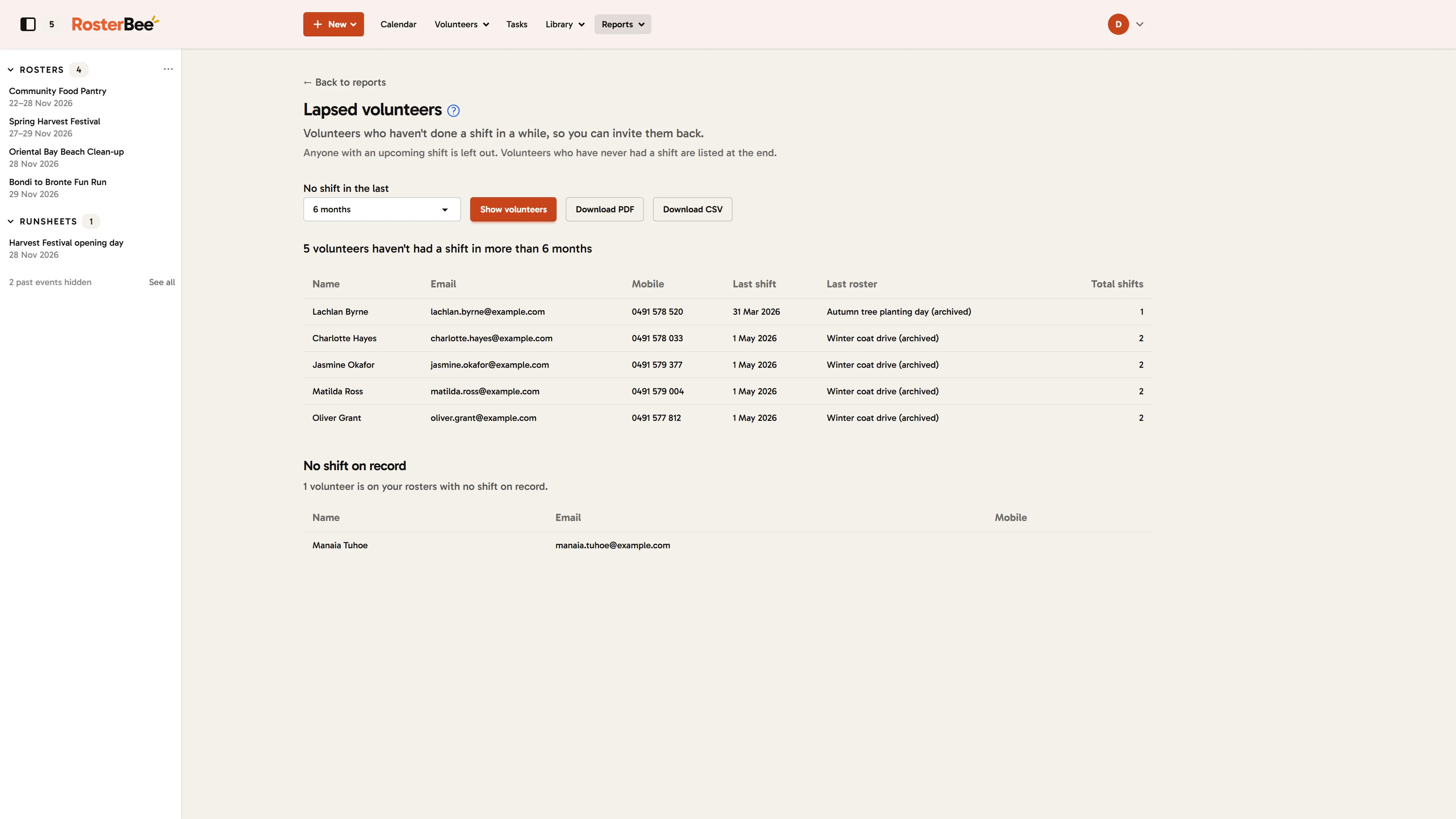 Show it full size.
- Lapsed volunteers: volunteers who haven't had a shift in 3, 6 or 12 months, and those who have never had one.
- New volunteers: volunteers whose first shift was between the dates you choose, with their first roster.
- Download each as a CSV or PDF.
Runsheets
A runsheet for the day. Change one time and everything after it moves.
Build a runsheet in your browser
Choose Runsheet on the home page and start typing. There is no signup and nothing to install. What you type is stored in your browser until there is something to share.
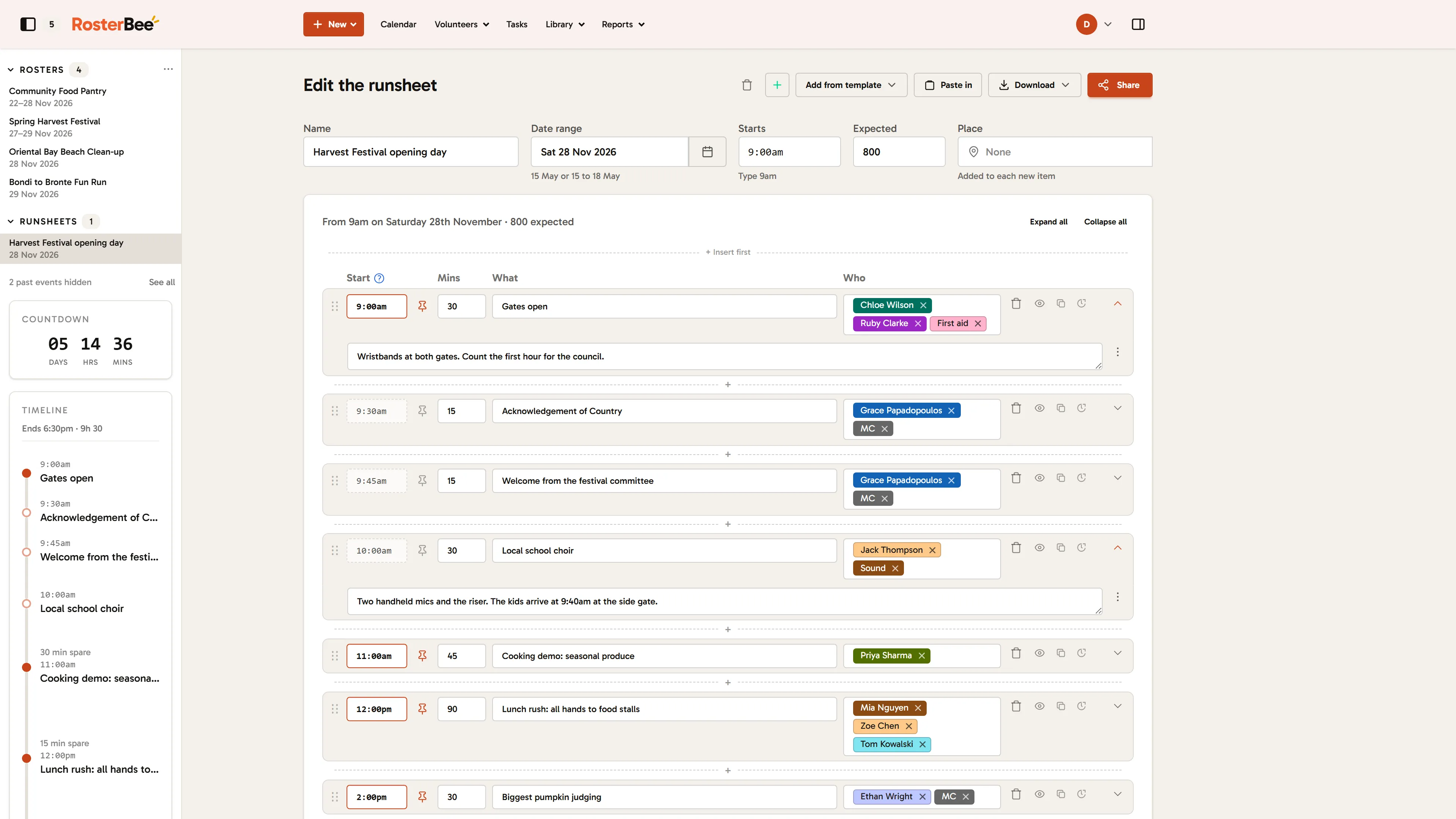 Show it full size.
- Type a start time on a blank page and the first item is added for you, with the cursor in the next one.
- Type times your way. 745pm, 930, 2000, 9.05 and noon all work. There is no time picker.
- Type dates your way. 15 may, sat, next friday, 15/5 and nye all work. A date with no year means the next time that date comes around.
- Reorder by dragging, with Move up and Move down in an item's menu, or hold Alt and press the up or down arrow.
- Insert an item between any two items, or at the top or bottom of the table.
- Runsheet name, date, expected number and start time at the top, with a countdown to the event once it has a date.
- Restore a deleted item for thirty days, with its text and its length. Paid plan.
- Nothing is sent to a server until there is something to share. Until then it is in your browser only.
Running late? Change one time and the rest of the day catches up
Each item stores how long it takes, not when it starts. Change one length and every item after it moves by the same amount.
- Each item stores a length. Its start time is worked out from the item above it.
- Pin an item to a fixed time, such as a race start at 9am. Items below a pin are timed from the pin.
- Spare and over. The gap before a pinned item is shown as spare time, or as over, in red. For example 10 minutes spare, or 15 minutes over.
- Type a start time on an item and the lengths and the order are adjusted to match it.
- Past midnight. An item at 1am shows +1 and stays in order.
- 12-hour or 24-hour times. You choose for each roster or runsheet, 3:00pm or 15:00, and every volunteer sees the same.
- A bar beside the table shows the day to scale.
- The finish time is always on screen.
A festival or multi-day event on one share link
Type the days into the Date range box and the items are grouped under a heading for each day. There is one share link for the whole event, and during the event it opens on today.
- Type a date range: 15 to 18 May or 28 Nov to 3 Dec, up to 90 days.
- A heading for each day, with a Day label beside it for the site, the stage or the theme of the day.
- Fold a day away, or show only the days that have items.
- During the event, the share link opens on today, with the days already over folded at the top.
- Move an item to another day at the same time of day. A pinned time stays on its own day, so a long day does not push it into the next.
- Day headings and labels appear on the printed page and in the copied text.
Import a runsheet by pasting text
Paste a runsheet from an email, a phone note or a spreadsheet. Check the preview, then add it.
- Most layouts are read: 9am Volunteers arrive, 12:00-12:45 Setup, or a column of times from a spreadsheet.
- Preview before anything is added. Each line is shown as it was read, with a warning on any line that was unclear and a count of lines that could not be used.
- Add it after the last item, or replace what is there. Before replacing, it says how many items follow somebody else's runsheet, because replacing unlinks them.
- Tidy the wording in one click. SETUP, gates open and Volunteers Arrive are put into one case. PA, MC, DJ and similar keep their capitals.
Adopt a runsheet you were sent and add your own items
Adopting gives you your own editable version of a runsheet somebody sent you. Add your own items to it, and the items you adopted keep following the original.
- The Adopt this button makes a version that you own and can edit.
- Adopted items keep their clock times. Your own items are timed in the gaps between them and cannot move them.
- When the original changes, yours changes with it and shows what moved.
- Your notes on an adopted item, and whether it shows on your share link, are yours. Changes to the original do not overwrite them.
- Stop an item following the original at any time, and turn following back on later.
- If an item is deleted from the original, yours stays at the time it had and shows what it used to follow.
- Share yours with your own people. They can adopt it too.
- Rosters cannot be adopted. Volunteers take and offer shifts through their personal link instead.
Print, PDF, CSV and plain text
Print a runsheet, save it as a PDF, download it as a CSV, or copy it as text.
- Print, or save a PDF, from the Download menu. No plugin is needed.
- The PDF includes the QR code and the share link.
- CSV for Excel or Google Sheets. Lengths are in minutes, so they add up, and start times are real times, not text. Each item's place and address have their own columns.
- Copy as text, to paste into a message or an email.
- The CSV and the text are made in your browser. The PDF is made on our server and is not kept there.
Your runsheet and every document behind it, in one PDF on your device
Attach each site map, briefing and permit to its item, and the Live PDF holds them all: your items first, then every document, each one a tap from the item it belongs to. It opens with no internet connection, for the site or venue with no signal.
- Every document is a tap from its item. Each document is a button under its item. Tap it to go straight to the page that document starts on.
- No searching your email. The site map, the briefing and the permits are in the same file as the items, in the order of the day.
- It opens with no internet connection. The PDF is kept on your phone or laptop, so it opens in a basement, a paddock or anywhere else with no signal.
- One copy, and it is the latest. No folder of old downloads to pick the right one from.
- It updates by itself. Change a time or attach a new document and the copy is replaced: two minutes after you stop editing, and when you close the builder.
- Opening it updates it. If the runsheet changed, the copy is made again before it opens.
- It says where it stands. Up to date, or out of date when there is no internet connection to update it.
- You choose what goes in. Untick In PDF beside a file to leave it out. A screenshot or photo goes in too, on a page of its own.
- Free without documents. Attaching documents needs the paid plan. Without them, the Live PDF holds your items, on any plan.
- Kept on your device, not ours. We make the PDF when your browser asks and do not store it. Nothing is kept until you press Keep a copy on this device.
- Updating needs an internet connection, and happens while the builder is open on that device or as you close it.
Hourly forecast on each item
Set a location once and every runsheet shows the forecast, for the day and for the hour of each item.
- A line under the date with conditions, temperature, chance of rain, wind, and sunrise and sunset.
- Each item shows the forecast for its own hour: an icon and a temperature.
- Set the location once, in Settings, and it applies to every runsheet you own. Set a different one on any runsheet for an event held somewhere else.
- Enter a town or a suburb. If yours is not in the list, the nearest town gives the same forecast.
- Volunteers with the share link see the forecast, with no account.
- Forecasts by Open-Meteo.
Show the runsheet on a TV or large screen
Kiosk mode shows the shared runsheet page as the items only, in type large enough to read from the back of a room.
- No menus, no buttons, no footer. It shows the items, the runsheet name and date, the expected number, your logo, and a ring counting down the current item.
- Show selected items only. Put a name such as Main stage on the items the room needs and set the screen to that name. A short list fits the screen without scrolling.
- It is a link. Send it to whoever runs the screen in a message, or add it to a display's start-up tabs. There is nothing to install.
- Goes fullscreen and keeps the screen awake.
- Esc exits. On a touch screen, a tap shows the exit button.
- Turn on Show QR code and any volunteer in the room can scan the screen to open the live runsheet on their phone.
- Live. Change a time in the builder and the screen updates, still filtered to the name you chose.
Tasks
Checklists on a roster or a runsheet, ticked off by your volunteers.
Checklists that get ticked off, with a name beside every tick
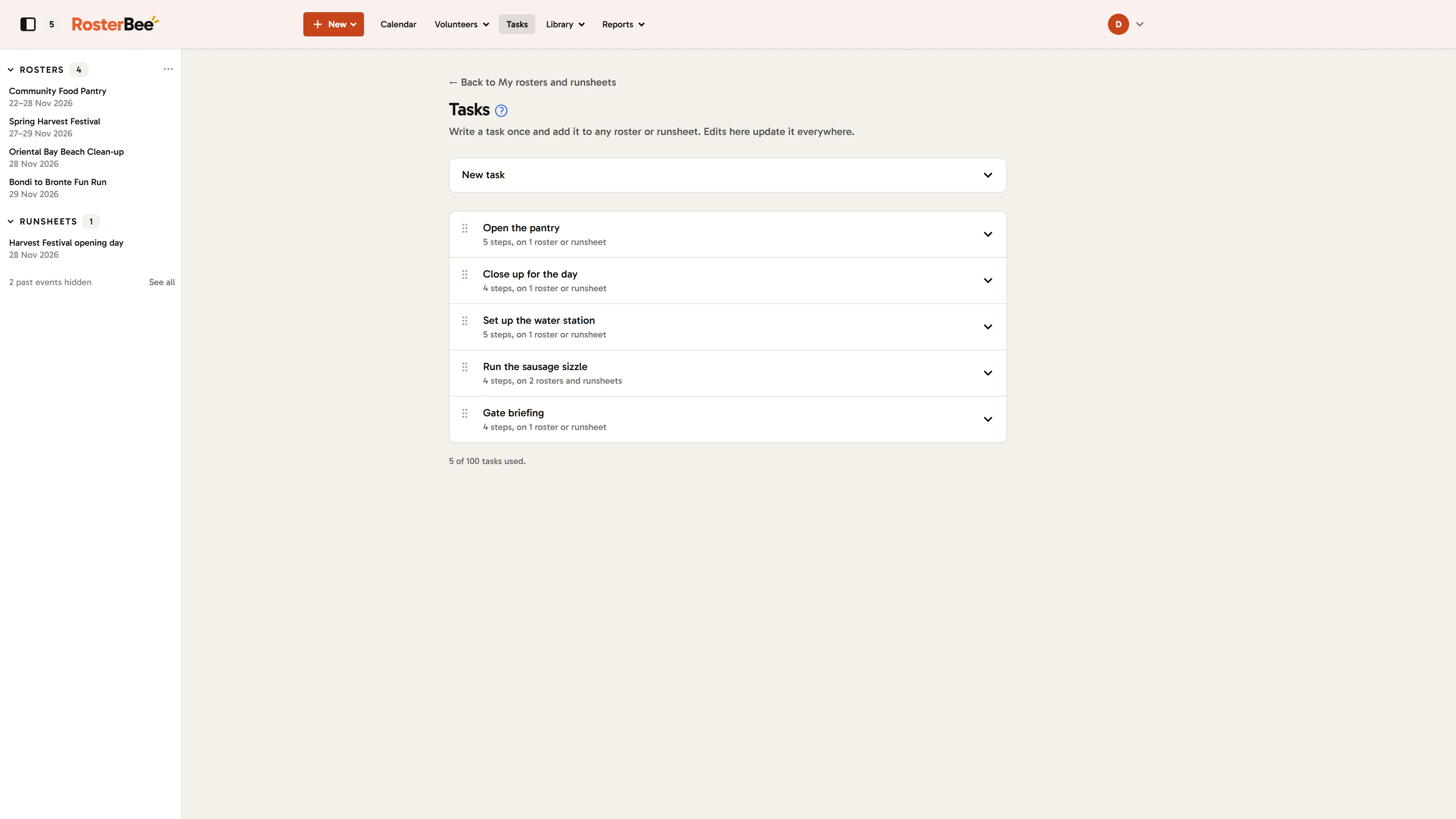
A task is a job with its steps, such as Set up the registration desk. Put it on a roster, a runsheet, or one shift or item. Volunteers tick it off from their personal link, and everybody sees the ticks as they happen.
 Show it full size.
- Write a task for one roster or runsheet in the builder's Tasks tab, or from an item's menu.
- Or keep it in your library on your account, such as Open the cafe, to add to any roster or runsheet.
- Steps in the order you set, and notes volunteers read above them.
- On a shift, an item or the whole roster or runsheet. Drag a task from the Tasks tab onto a shift or item, or drop it anywhere else for the whole roster or runsheet.
- Ticked live. Volunteers tick a task or a step from their personal link, and everybody with the page open sees the tick straight away. The plain share link shows the ticks but can't tick.
- A task on a shift or item with names on it can only be ticked by those volunteers.
- The volunteer's name shows beside their tick.
- Edit a library task once, changed everywhere. A library task on a roster or runsheet is linked, not copied. The ticks belong to each one, so the same task can be done on one runsheet and not started on the next.
- Adopt a runsheet that has tasks and the tasks are copied into your own library, yours to change.
- Up to 50 tasks on a roster or runsheet.
- Free for up to 10 tasks of 10 steps each. The paid plan holds up to 100 tasks of 100 steps each.
- Keeping tasks needs you signed in. Adding them to a roster or runsheet needs your email address verified.
Everyone knows exactly where they're needed
Add a name or a role to an item in the Who column. Volunteers on the share link pick their name and see only their own items.
- Names come from one list on each roster or runsheet, so each name is spelled one way.
- Up to twelve colours, which you assign. A name has the same colour in the builder, on the share link and on the printout.
- Rename someone once and every item updates. Renaming to a name that already exists merges the two.
- Suggested roles fit a volunteer event, such as Coordinator, Setup, Registration, Gate, First aid and Cleanup.
- An item can have more than one name.
- Drag a name from the Who tab onto an item. Tick several to drag them together, or to add them with a click on each item. Drop them on a day's heading to add them to every item that day.
- Add a company and a phone number to a name. Everybody is listed under Contacts at the bottom of the shared runsheet page and the printout. Tap a number to call it.
- Saved names and roles: up to thirty kept on your account. They are suggested first on every runsheet you build, on any device you sign in on. Rosters list only their own volunteers.
- A saved name brings its colour, company and number to each new runsheet.
- A free roster names up to 15 volunteers and a free runsheet up to 3. The paid plan names up to 250 on a roster and 40 on a runsheet, and keeps your saved names and roles on your account.
One link for the whole team. Nothing to download, no password to forget
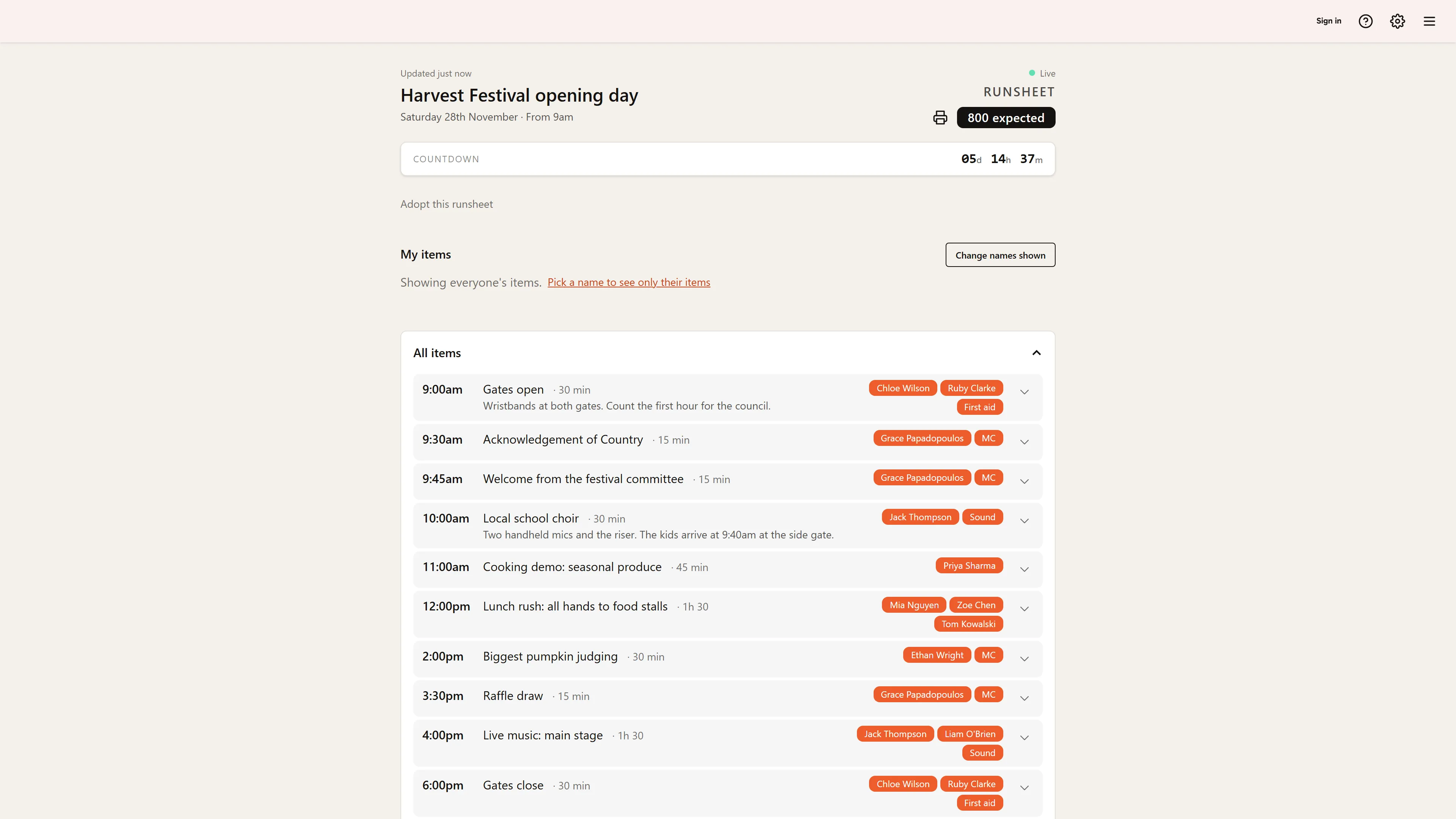
Send a runsheet's share link to every volunteer on the day. They all read the runsheet you are editing, and their page updates when you change it.
 Show it full size.
- Two links. The share link is for volunteers. The edit link works only for you and your coordinators, signed in, unless you let anyone with it edit. Neither can be worked out from the other.
- Volunteers need no account, no app and no password.
- Changes appear within seconds. A status dot shows whether the page is connected, and says so when the connection is lost.
- A QR code for every runsheet, to print or put on a screen.
- On a roster, each volunteer uses their own personal link to see and take shifts. The roster's plain share link is for a screen at your volunteer desk or a printed QR code.
- Reset the edit link if the wrong person has it. The old edit link stops working and the share link does not change.
- Hide an item from the share link with the eye button. It still counts in the times, and volunteers do not see it.
- See how many people have adopted your runsheet.
- Two people can use the edit link at once. If both change something, the second save is stopped before it overwrites the first, and what is on screen is kept.
What your volunteers see: just their part, and a countdown to it
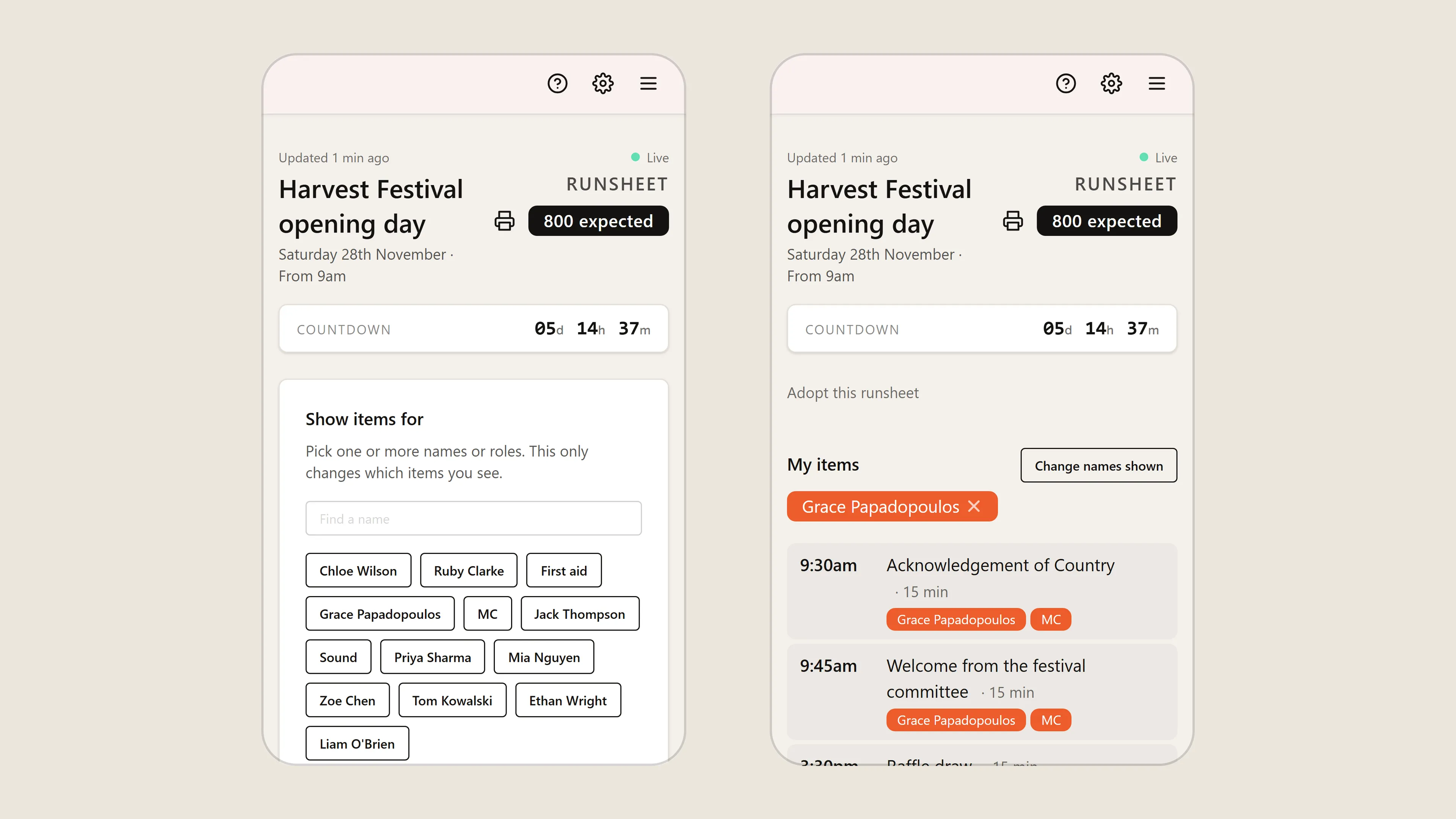
A runsheet's share link opens a read-only page made for phones. On a runsheet that uses Who, a volunteer picks their name and sees only their own items. On a roster, volunteers see their own shifts through their personal link.
 Show it full size.
- A volunteer is asked who they are once, and the page filters to their items. Show all is one tap away.
- The next item has a you! badge and a countdown.
- Works on slow wifi. The schedule is part of the page as it loads, so it can be read before the rest of the page has finished loading.
- The page updates as you edit. If a name is renamed and a volunteer's filter no longer matches anything, the page says so.
- Changes since the last visit. A volunteer is told how many things have changed, and each changed item shows what it was: Setup · was 14:50. The marks stay until the volunteer says they have seen them.
- Notifications. A volunteer can turn on notifications and their phone says what moved, Race start now 9:20am (was 9am), even with the page closed. When the runsheet uses Who, only items with their name notify them. A comment on one of their items, or a reply to their comment, notifies them too. Free on every plan.
- Offline. Each runsheet a volunteer opens is saved on their phone. With no signal they get the last version they loaded, marked with when it was saved.
- Add to calendar. A runsheet with a date goes into the volunteer's own calendar as one calendar entry, with the share link in it.
- Pass it on. Copy link and a QR code at the foot of the page. On a phone, Share opens the phone's share menu.
- A print button.
- Share links and personal links are not indexed by search engines.
Notes, documents and places
Text, files and venues you save once and use on every roster and runsheet.
Reusable note text
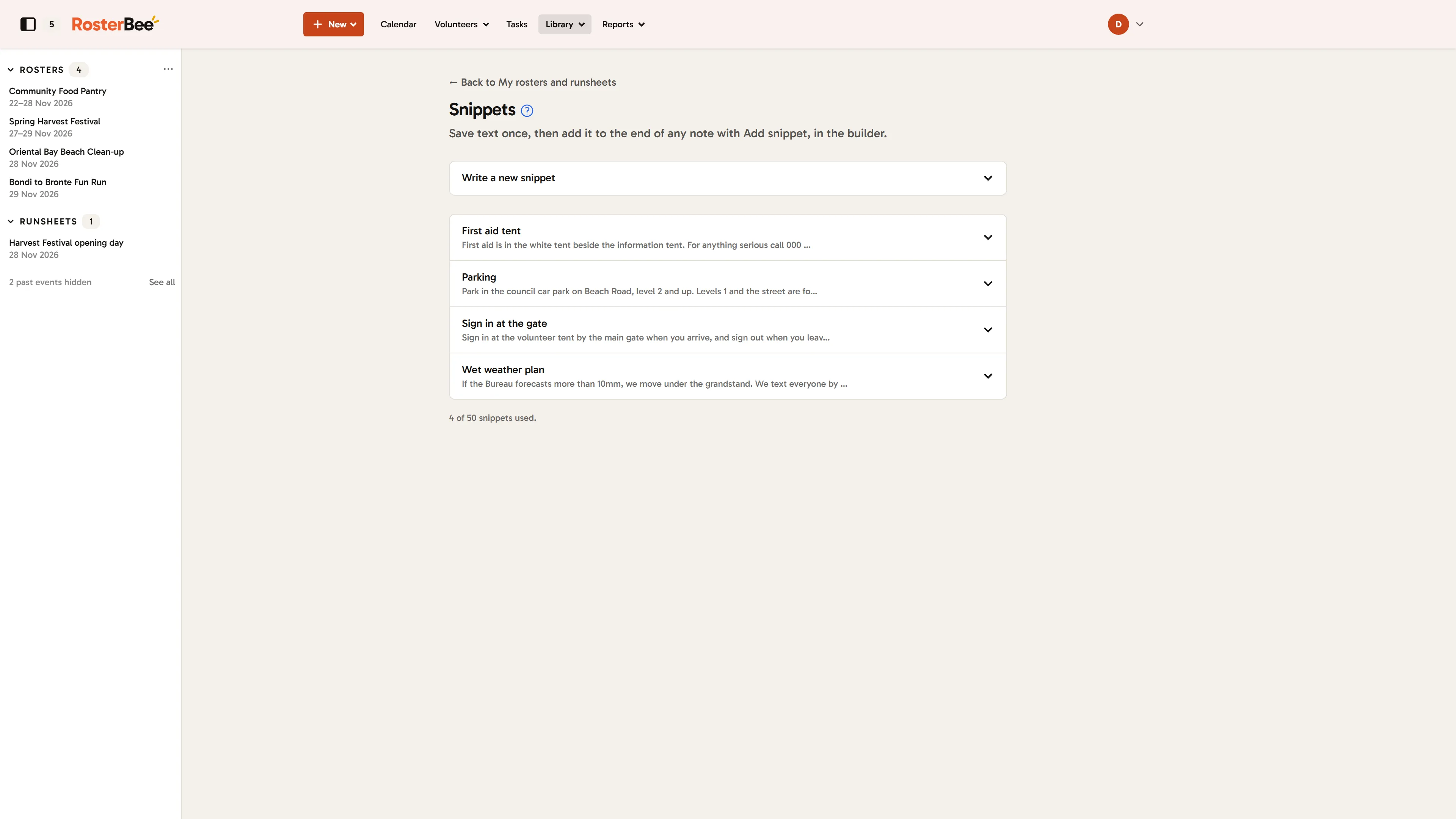
Save text you use often, such as parking directions or sign-in instructions, and add it to any note on any roster or runsheet.
 Show it full size.
- Save a block of text once and add it to the end of any note, on an item or on the whole runsheet. You can edit the note afterwards.
- Up to fifty snippets, saved on your account, so they are on every roster and runsheet you build.
- Choose whether the snippet's name goes at the top of the note in bold.
- Bold, bullets and numbered lists in a note. Press Ctrl+B for bold. Start a line with a dash or with 1. for a list. The note looks the same to your volunteers.
- Editing a snippet changes the snippet only. Notes you already added it to keep their text.
Attach site maps and briefings where volunteers will look
Attach a site map, briefing or permit to the item it belongs to. The file is kept exactly as you uploaded it, and volunteers open it from the share link, with or without signal.
- PDFs and PNG, JPEG or WebP images, up to 10 MB each. Up to 5 on an item and 50 on a runsheet.
- You choose what the share link shows. A new file is hidden until you tick On share link. A file on a Private item is never shown.
- Files open on the page. Zoom in to scan a code from the screen, or download the original.
- One PDF with every document behind it. Print or save PDF makes one PDF: the items, then each document. A PDF goes in as it is, and a screenshot or photo gets a page of its own. Untick In PDF beside a file to leave it out.
- Drag files in. On a computer, drop files from a folder on an item to attach them to it.
- Paste a screenshot. Click into an item and press Ctrl+V. A screenshot is attached to that item, named after it.
- Carry them as a Live PDF. Your browser can keep that PDF and update it when you change the runsheet. With no internet connection, RosterBee opens the copy.
- Each document is a button in that PDF. Tap it to go to the page that document starts on. Keep the PDF on your phone, where it opens with no internet connection, or print it.
- Images show on the item as a row of thumbnails.
- Offline. A phone that has opened the share link keeps the files listed on it, each marked Saved for offline.
- File names are tidied when you attach. north-gate-site-map.pdf shows as North Gate Site Map, and a photo from a phone is named after its item.
- Every file is scanned for viruses when it is uploaded.
- Files are not read automatically. No times or details are filled in from a file.
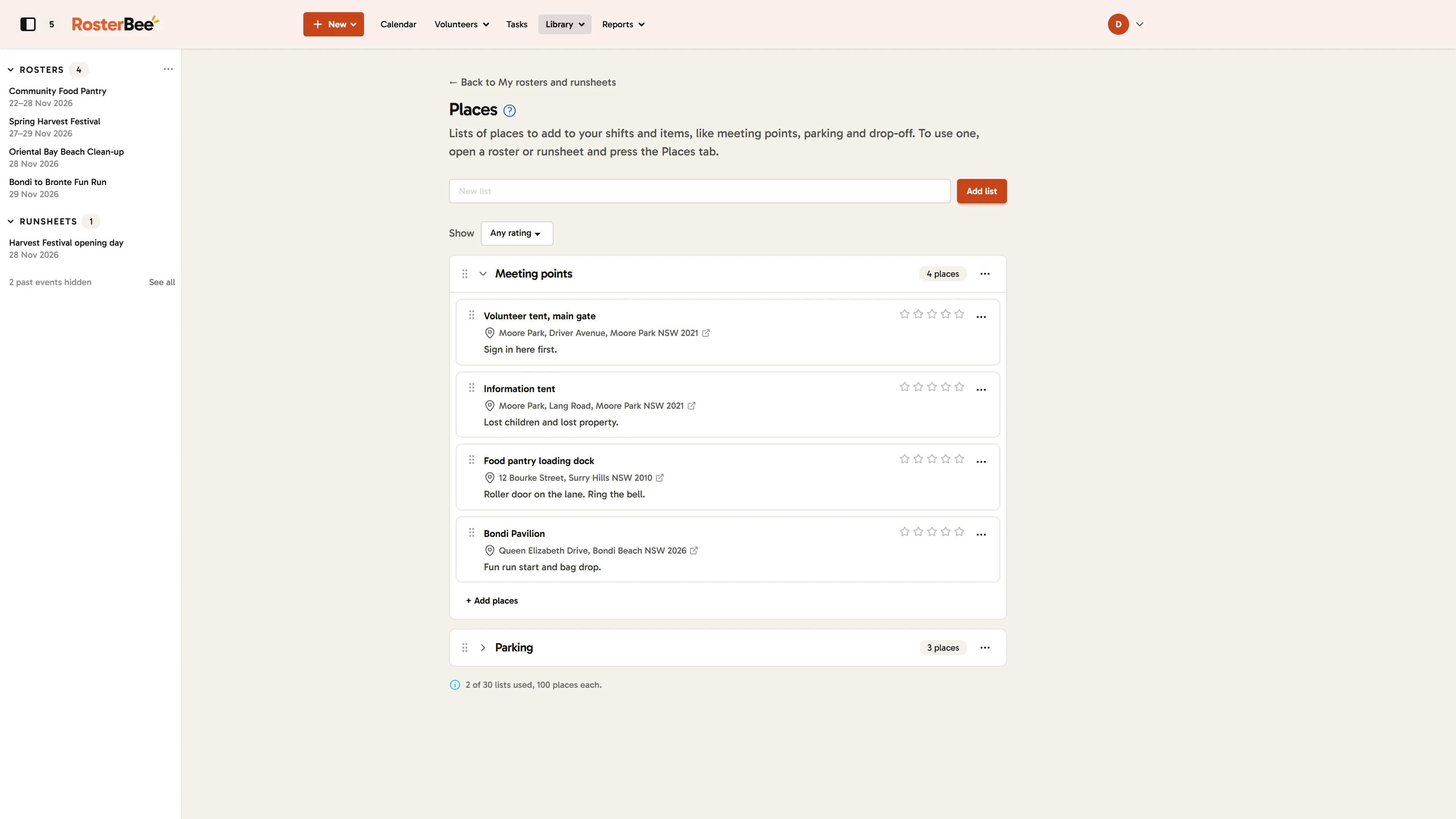
Saved venues, sites and meeting points
Keep the venues, sites and meeting points you use in lists you name and put in order. Add a place to an item and its website, map and files come with it.
 Show it full size.
- Up to 30 lists of 100 places each, saved on your account, so they are on every runsheet you build.
- Google Maps search as you type a name. Pick a suggestion and the place has its map. Or type an address, or paste a map link.
- Paste a list from Excel or Google Sheets: name, website, address, notes.
- Add puts a place on the runsheet as a new item. Add all adds the whole list. Drag a place onto an item to put it on that item.
- Set a Place at the top of the builder and every new item starts with it.
- The share link and the printed page show the place's name, website and address. Tapping the name opens a map. Your notes on a place are not shown.
- Files on a place. Attach a site map, a floor plan or photos to a place, up to 10 files. They show on every item that uses the place, on every runsheet.
- Limit a list to one runsheet, and it is not offered on the others.
- Each item keeps its own copy of the place. Editing your lists does not change items already on a runsheet.
Your account
Your list of rosters and runsheets, the calendar, branding and settings.
A list of every roster and runsheet you have shared
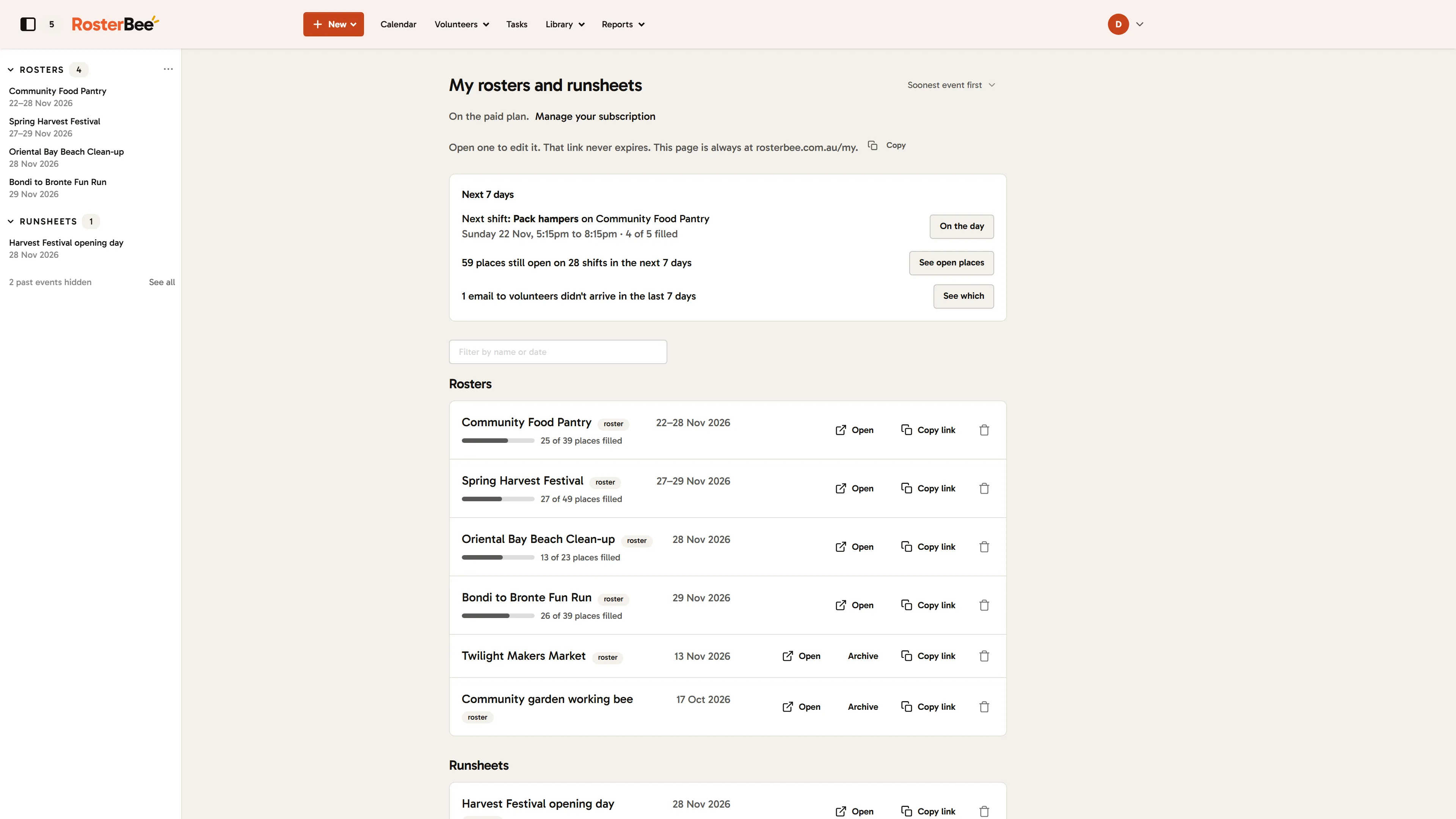
Sharing is free and needs no email address. Sign in with an email address and you get a list of every roster and runsheet you have made, on any device you sign in on.
 Show it full size.
- Sign in with six digits sent to your email address. There is no password and no signup form.
- You sign in once per device.
- Your rosters are listed first, under their own heading, then your runsheets, each with its link and a button to copy it.
- With eight or more, a box above the list filters it by name or date.
- How long a roster or runsheet is kept. Once your email address is verified, it is kept with no expiry, on the free plan and the paid plan. An unverified one is deleted after a year unused.
- Delete a roster or runsheet when you no longer need it.
- Download the list as a CSV.
Your rosters and runsheets on a month, week or day calendar
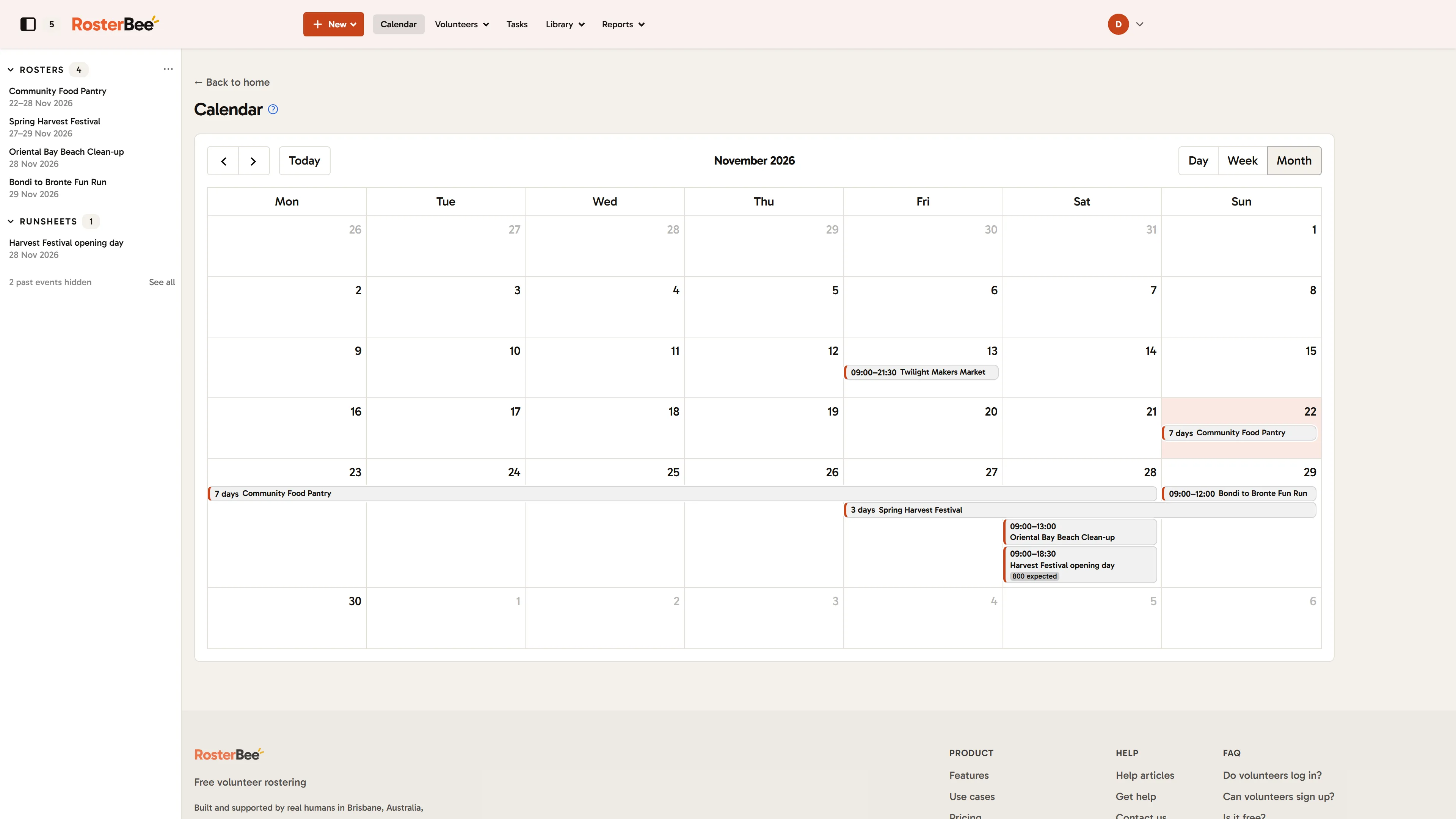
The calendar shows every roster and runsheet you own that has a date. Click one to open it.
 Show it full size.
- Month, Week and Day views. It opens on the view you used last.
- Hover over one on a desktop to see the date, start time, finish time, length and expected number.
- Click one to open it in the builder.
- A runsheet that runs past midnight continues into the next day.
- Rosters and runsheets with no date are counted and named under the calendar, with a link to the list.
- On the free plan the page shows the calendar filled with sample data.
Coordinators who run your rosters with you
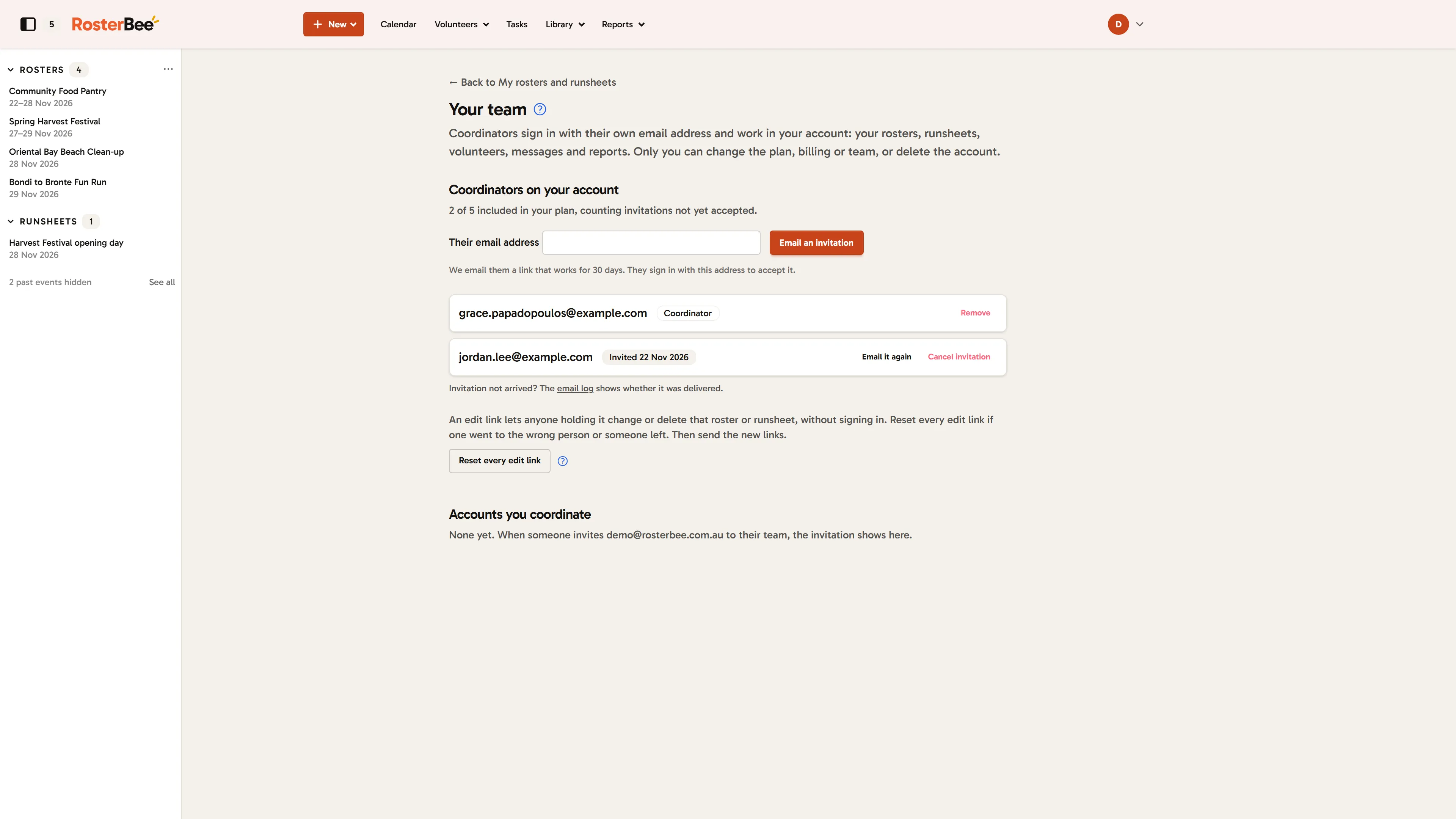
Invite up to 5 coordinators at no extra cost. Each signs in with their own email address and works in your account.
 Show it full size.
- Coordinators work in your rosters, runsheets, volunteers, messages and reports.
- Only you change the plan, billing or team, or delete the account.
- Coordinate for more than one account and switch between them.
- A coordinator can add SMS credit with their own card.
Your logo, colour and typeface on what volunteers see
Your rosters and runsheets, shared and printed, carry your logo and your name in place of ours.
- Your logo at the top of every roster and runsheet you share and print. You choose its size and its position.
- Your accent colour on the page, and an optional tint on the paper.
- Your name at the top of every email volunteers get, with its buttons in your accent colour.
- Four typefaces: the default, a classic serif, a modern sans, and a condensed one for a long schedule.
- A contact line under your name.
- A live preview beside the controls.
- Use a sponsor's or partner's brand on one runsheet in place of your own.
- An optional second logo for dark pages. It is also used as the browser tab icon when the volunteer's browser is dark.
Wording, dark mode and display options
Choose what a runsheet is called and what is shown on screen.
- Wording. Call a runsheet a runsheet, event, agenda, program or order of service, or type your own word. Volunteers see the word you chose.
- Light and dark mode.
- Install it on your phone's home screen and it opens like an app.
- Hide the panels you do not use. The countdown, the timeline and the share card each have a switch.
- Shared notes on a roster or runsheet for where to sign in, parking, what to wear and who to call. Each shift or item can have its own note too.
- Internal notes on a runsheet, which are never on the share link. Paid plan.
Start your roster or runsheet now
No signup or passwords. Works instantly.
Volunteers can ask a question on any item
Volunteers can comment on a shift or an item. They need no account and no app.